
Installer LIVE View lets Retailers/Traders see what the installer is seeing while they are still on site. The installer shares their Bridge Select app screen and camera straight to the job in the portal, so you can check, clarify or resolve an issue there and then, without a separate screen-sharing or video app.
🕒 When is LIVE View available?
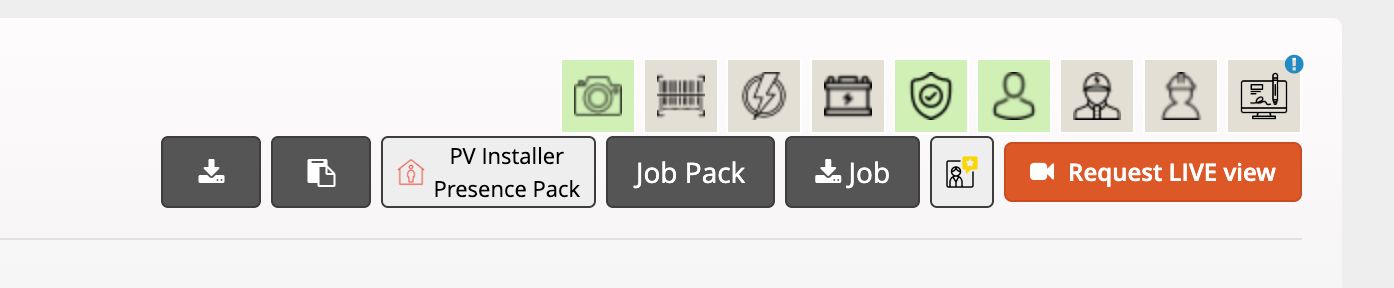
- Request LIVE view appears in the icon bar on the edit job page only while the job, or any of its certificates, is In progress.
- The button is greyed out if no installer is assigned to the job, or the job has used its 2 live views for the month. The count resets on the 1st of each month.
- While a session is running, Request LIVE view is hidden and a LIVE view button is shown instead. It appears whenever the installer is sharing, whatever the job's status.
- LIVE View is available from the edit job page, not from the jobs list.
💻 How to Request a LIVE View
Open the in-progress job and click Request LIVE view in the icon bar. Hover over the button to see how many live views are left for the job this month.
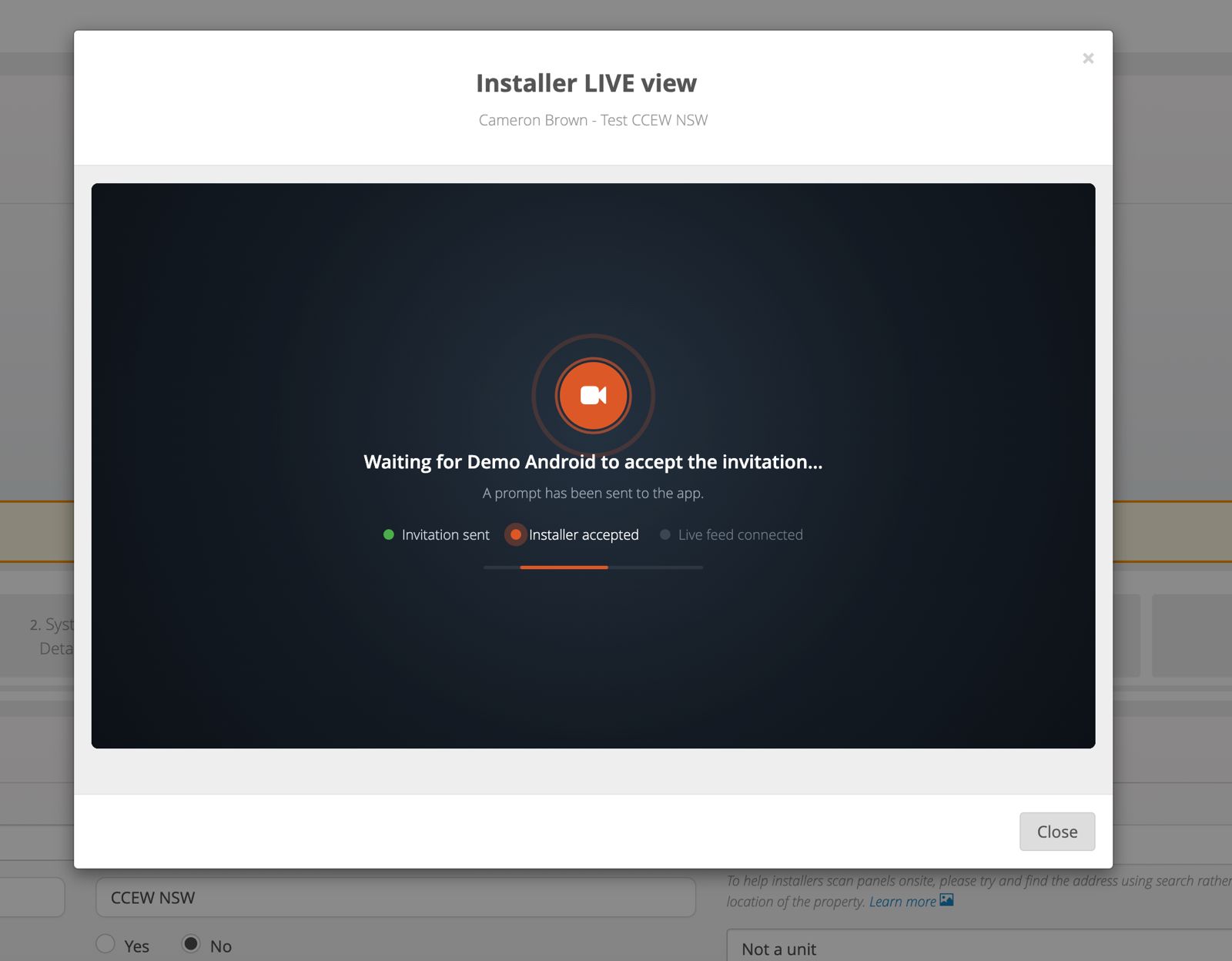
The Installer LIVE view window opens and sends a prompt to the assigned installer's app. It tracks progress through Invitation sent, Installer accepted and Live feed connected.
📱 In the Installer App
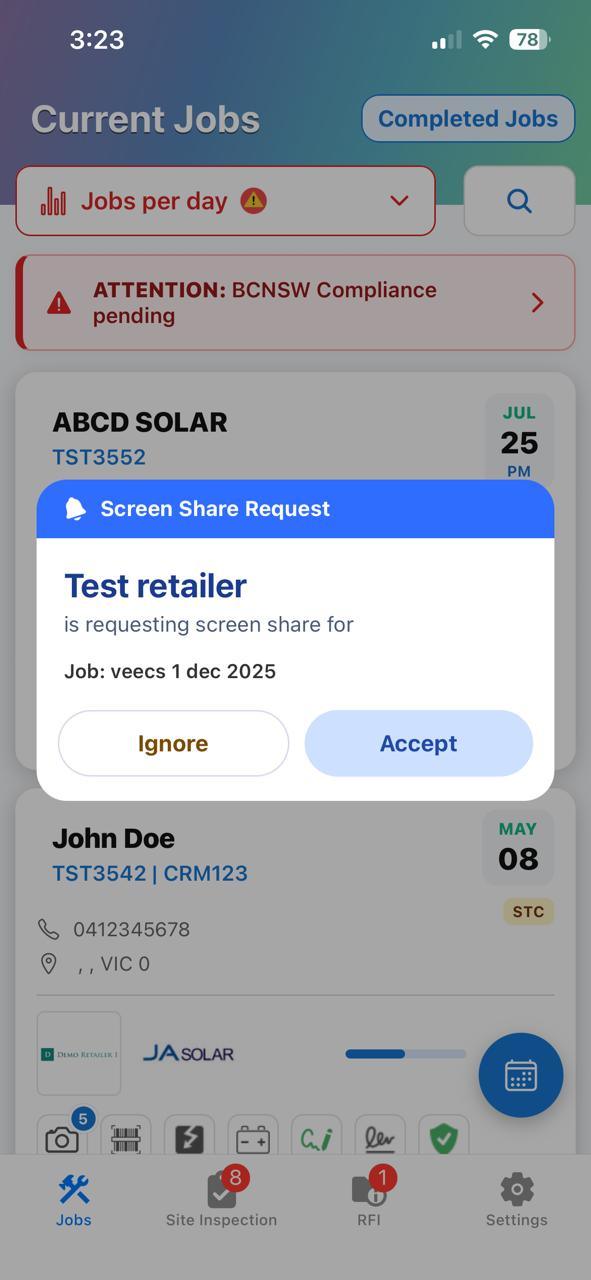
Accept the request: the installer sees a Screen Share Request showing who is asking and for which job, and taps Accept (or Ignore).
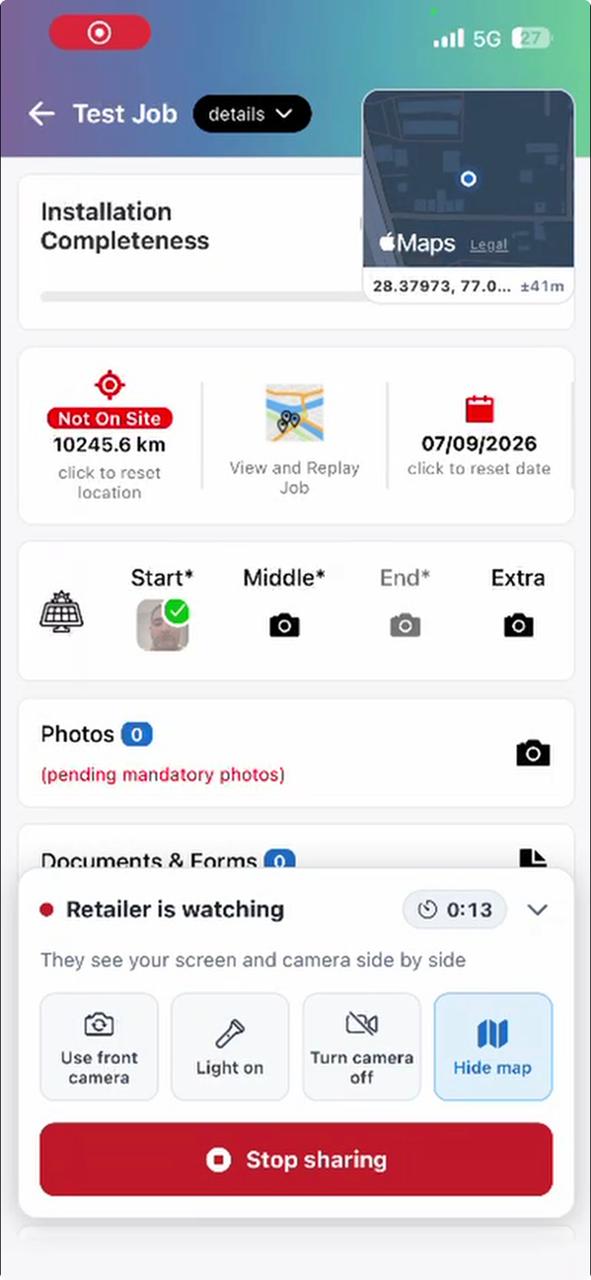
Share screen and camera: while sharing, the app shows Retailer is watching. The installer can switch to the front camera, turn the light on or off, turn the camera off, or tap Stop sharing at any time.
👀 Watching the Session
Once the feed connects, you see the installer's screen and camera side by side in the portal. If you close the window, click LIVE view on the job to rejoin while the session is still running.
Still need a hand?
If you have any questions, please do not hesitate to reach out to us.
Contact the BridgeSelect Support Team