
The Installer RFI feature allows Retailers/Traders to request additional photos, serial number scans, signatures, or other information from installers. The installer receives the request in the app, completes the required tasks, and submits the RFI. Retailers/Traders can then review the submitted information and create additional RFIs if needed.
🕒 When is Installer RFI available?
- Jobs list: the Raise RFI button and RFI status show on the tabs after Submitted: Information requested, Waiting for approval, Resubmitted, Failed, Cannot trade, Approved and Cancelled. They don't show on In Progress, Submitted or any earlier tab.
- Edit job page: the Installer RFI tab appears once any certificate on the job (STC, BSTC, VEECs, ESCs, REPs, BESS1, BESS2) has moved past New, Assigned, In progress, Installed and Completed, or already has an RFI requested or provided.
- Installers: Traders choose from their own installers linked to the job's retailer; Retailers choose from their own installer list. Installers need the Bridge Select app iOS 6.1.6+ or Android 6.1.7+.
🔍 RFI Workflow Overview
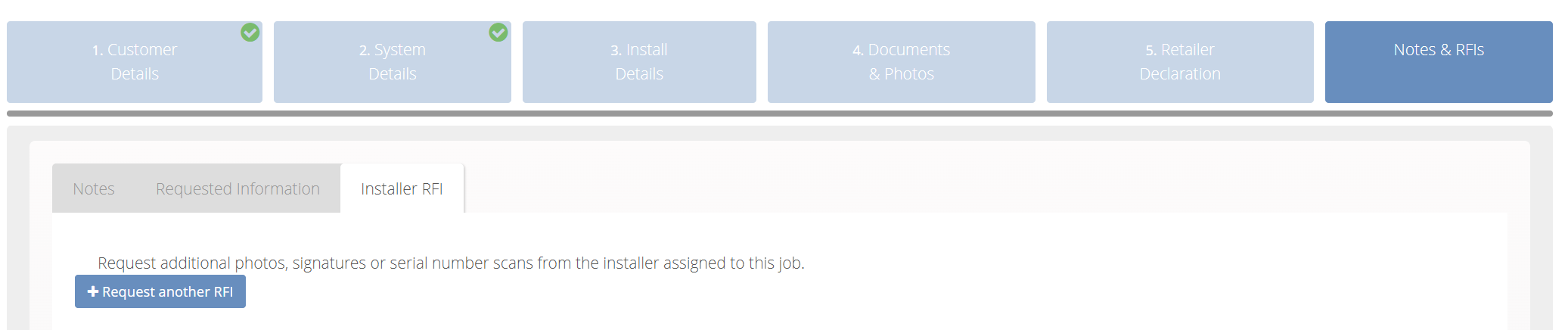
To create an RFI, open the required job, navigate to the Notes & RFIs section, select the Installer RFI tab, and click + Request another RFI to create a new request.
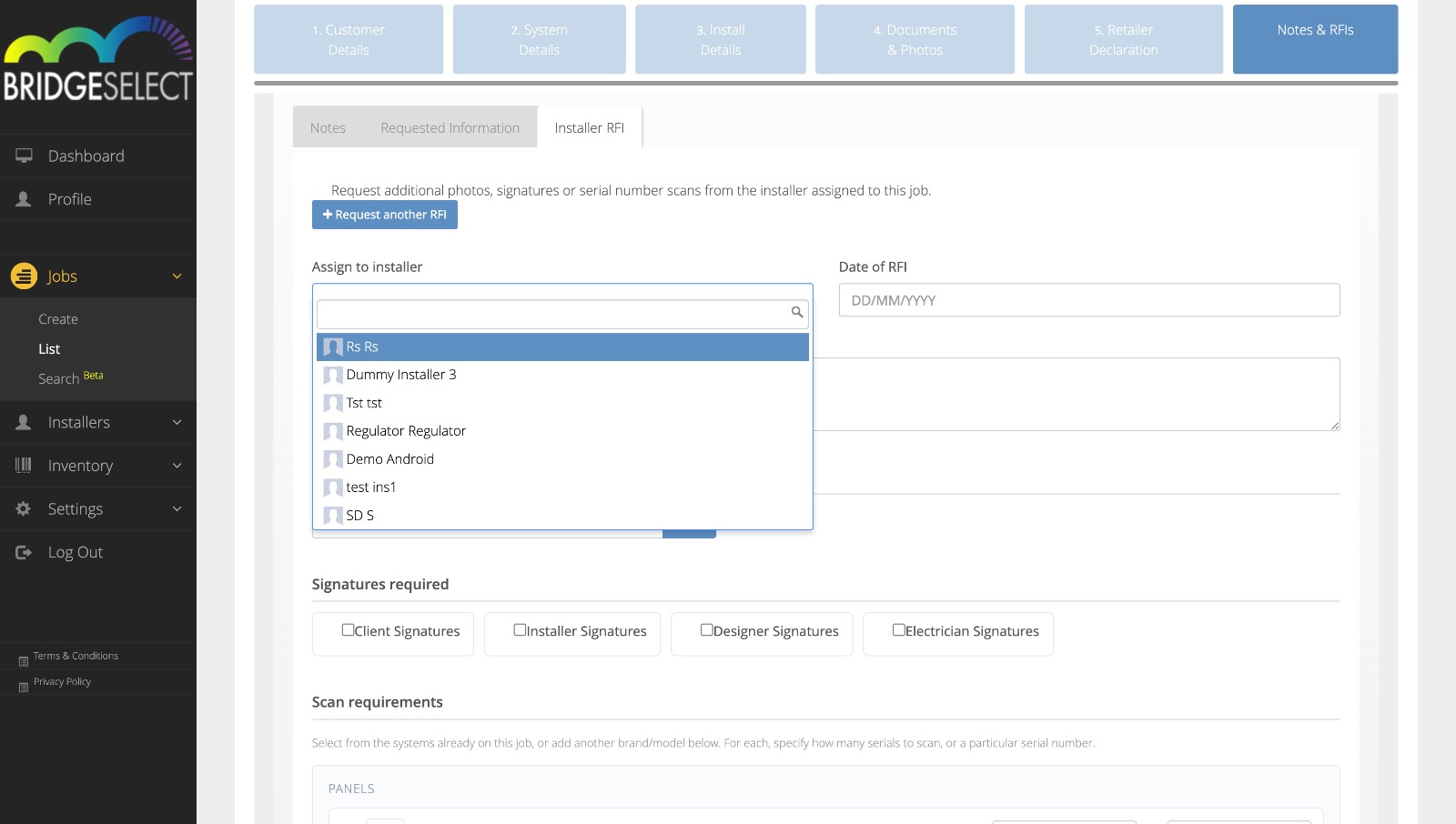
In the Assign to installer field, select the installer responsible for completing the request. The selected installer will receive the RFI in the Installer App.
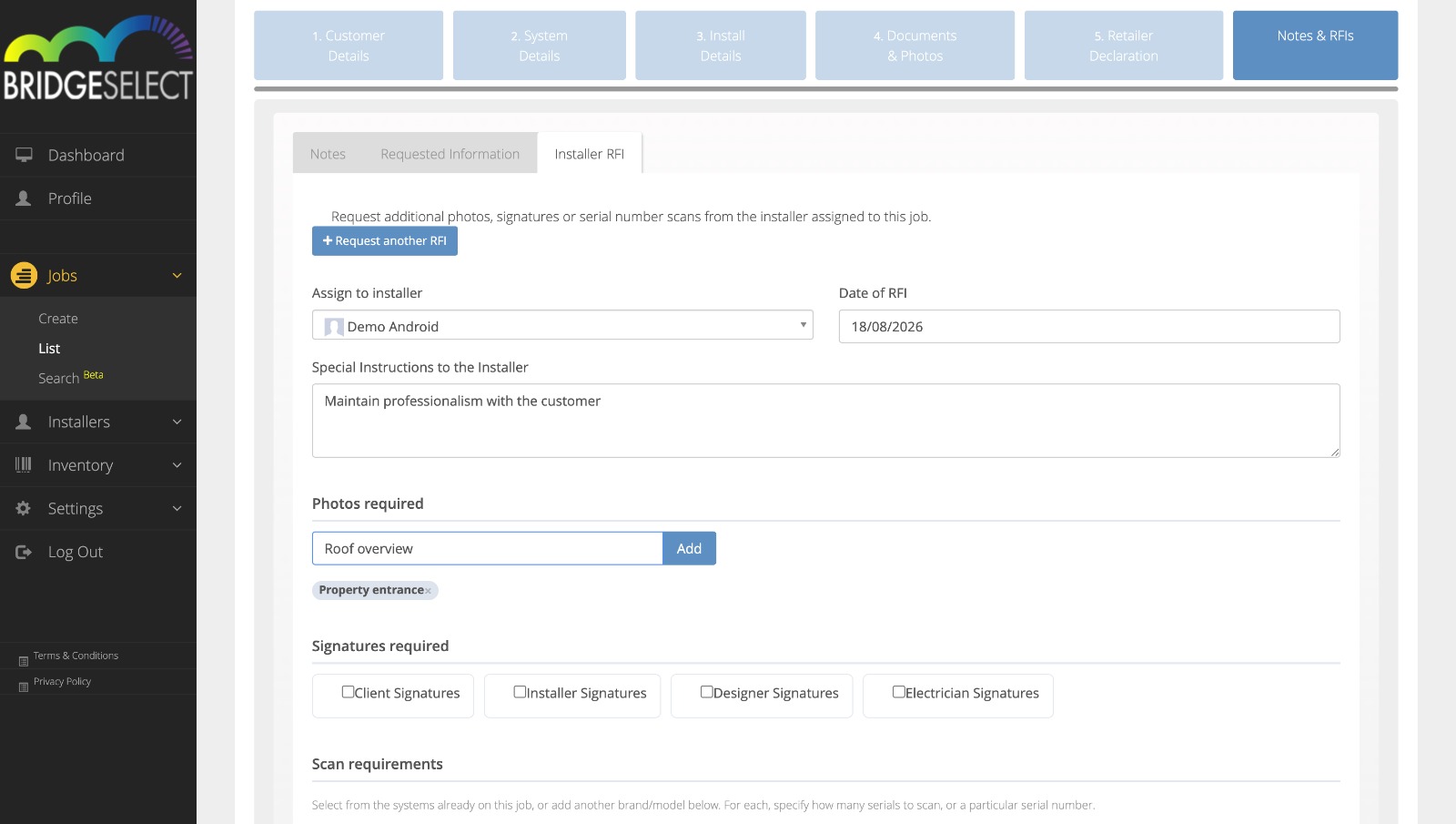
Enter the Date of RFI, add any Special Instructions to the Installer, and specify the required photos under Photos required. Enter the photo type and click Add (e.g., Roof overview).
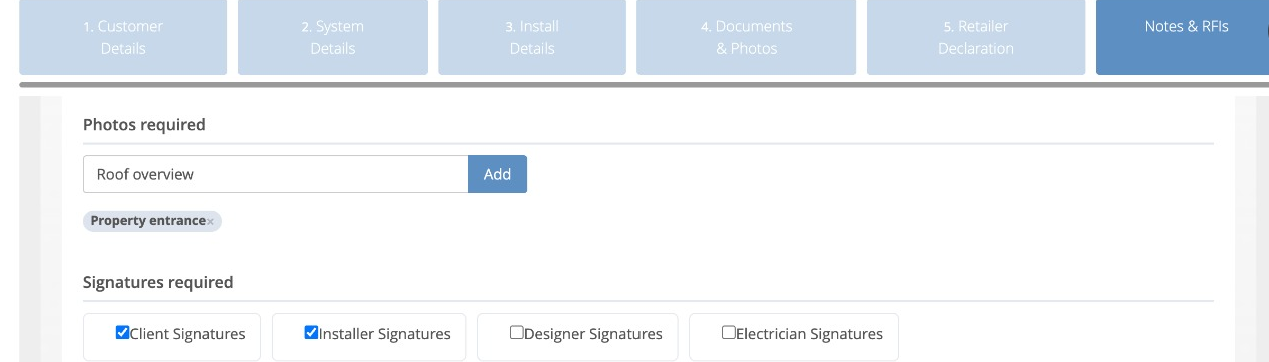
Under Signatures required, select the signature types that need to be captured again, such as Client Signatures, Installer Signatures, Designer Signatures, or Electrician Signatures. The installer will be prompted to provide the selected signatures through the Installer App.
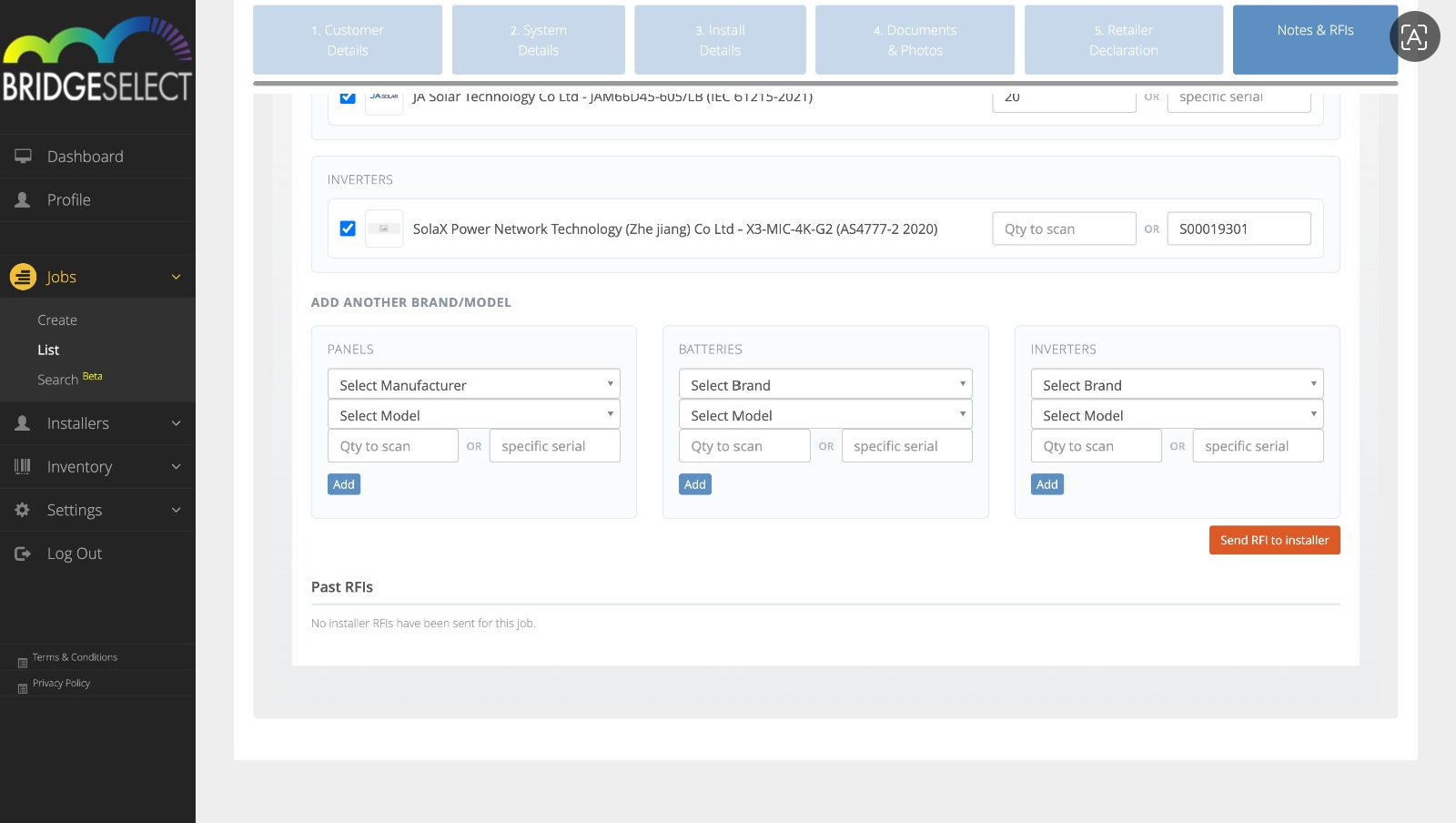
Select the relevant product and specify the Quantity to Scan or Specific Serial. If the required product is not already included in the job, use Add Another Brand/Model to add the product and specify the required quantity or specific serial number.
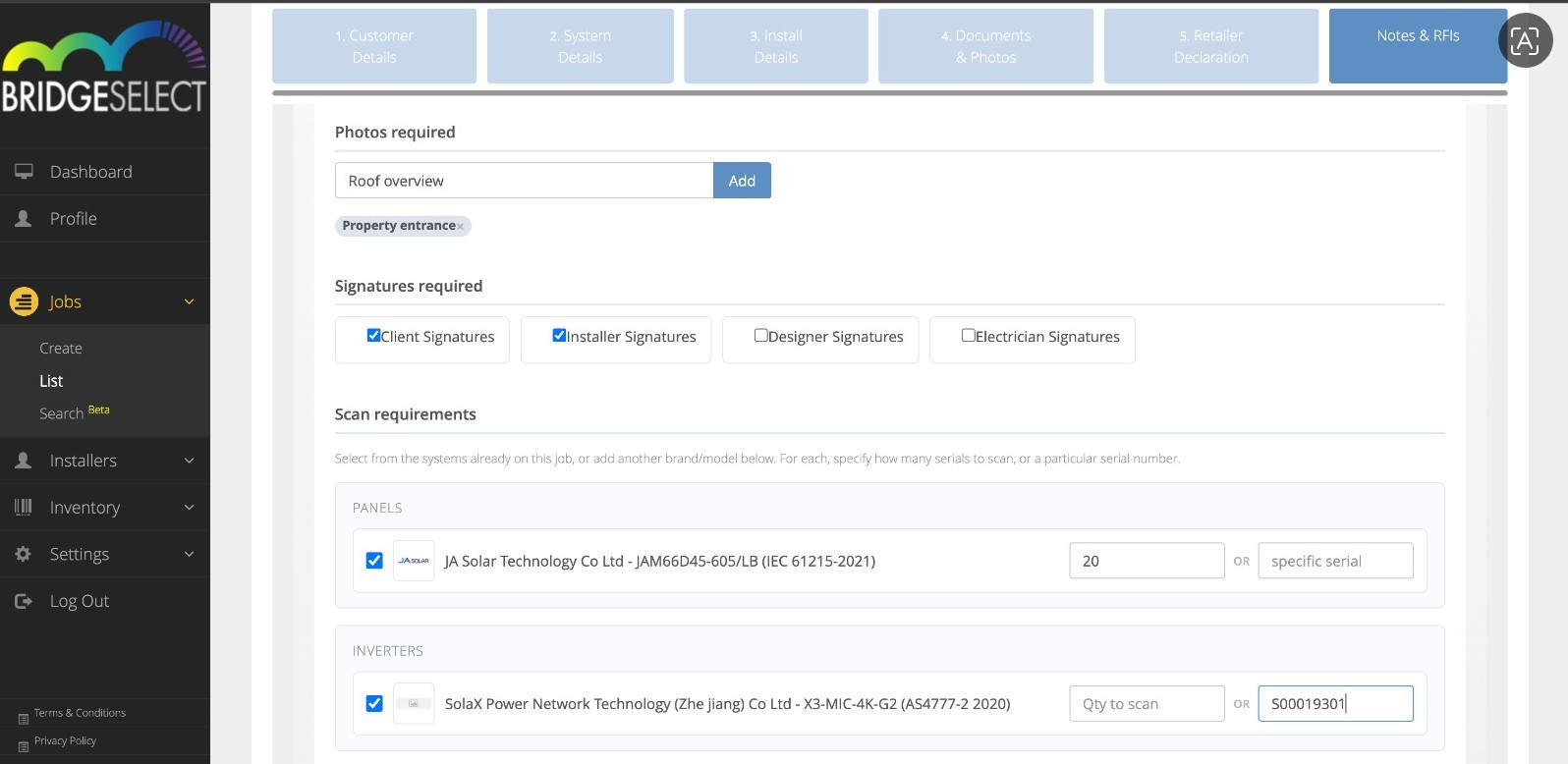
After completing all required fields, the RFI is assigned to the selected installer.
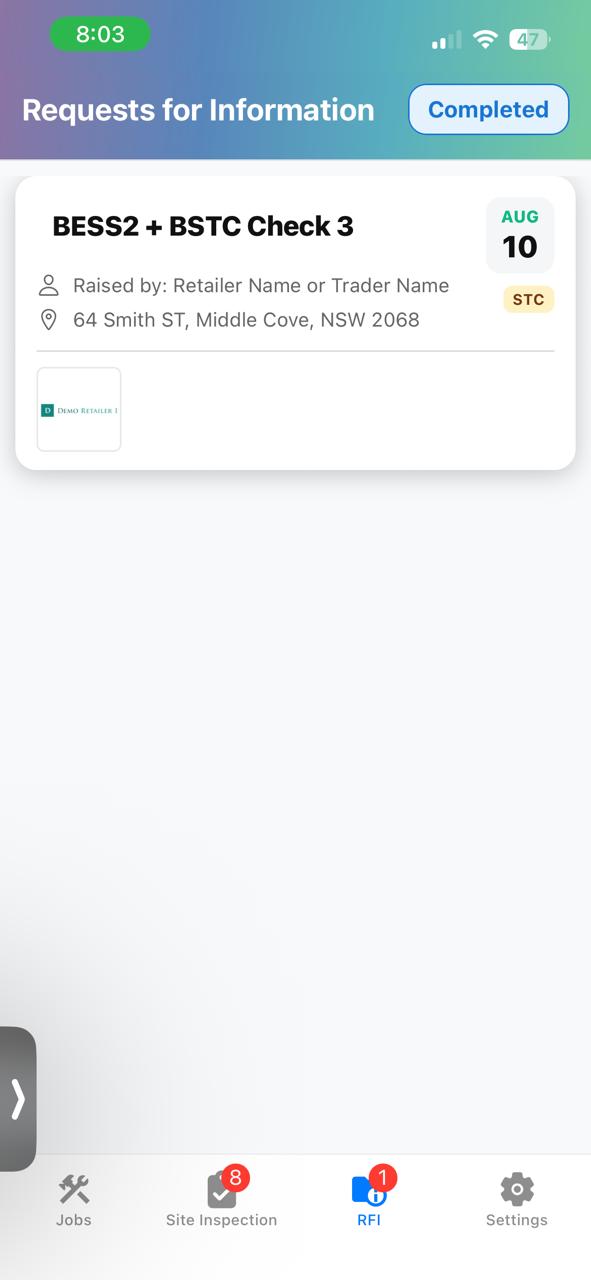
📱 How to Complete an RFI in the Installer App
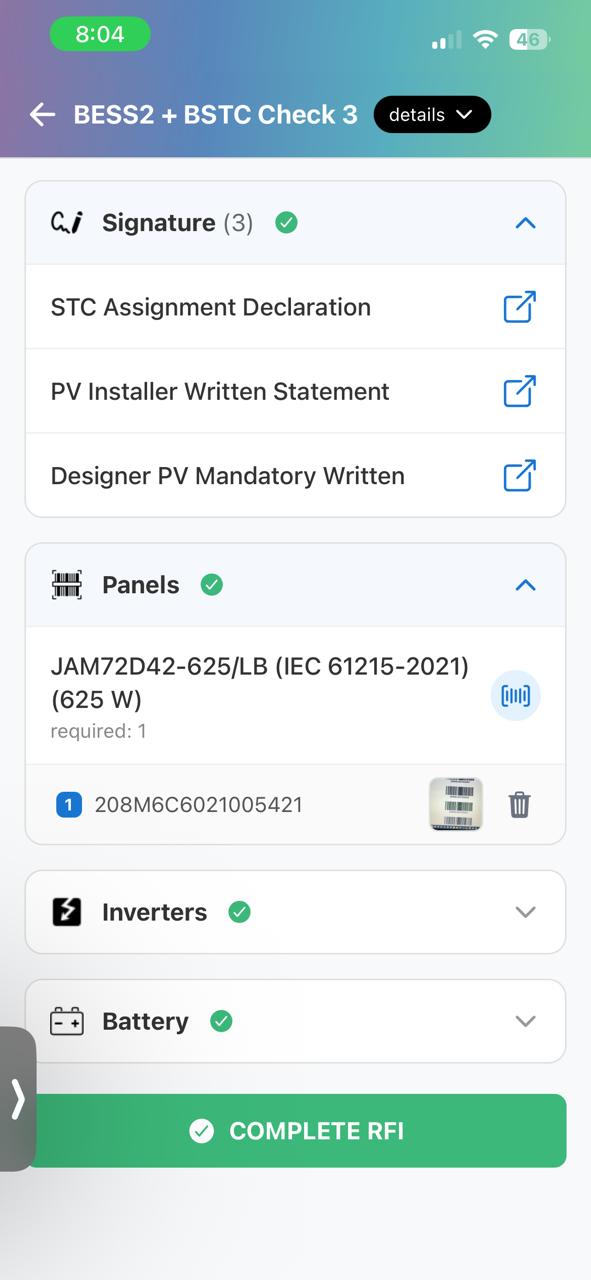
View Assigned RFIs: Installers can open the app to view all RFIs assigned to them and select an RFI to review the requirements.
Complete Requirements: Installers can fulfil the RFI requirements by taking photos, scanning serial numbers, and providing the required signatures.
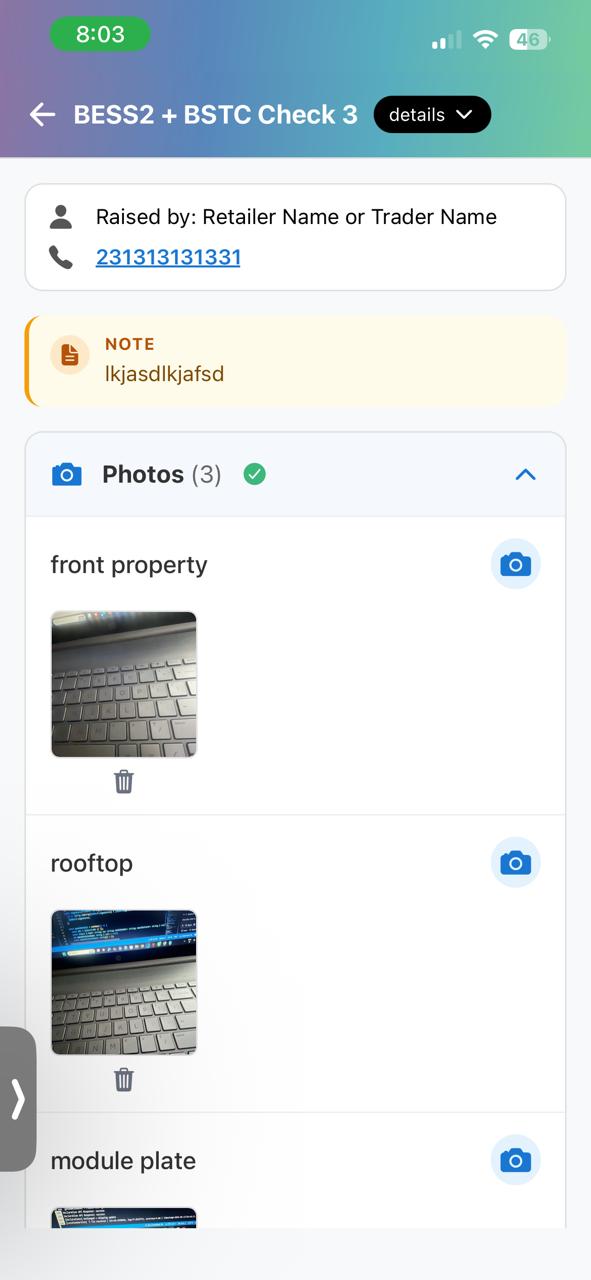
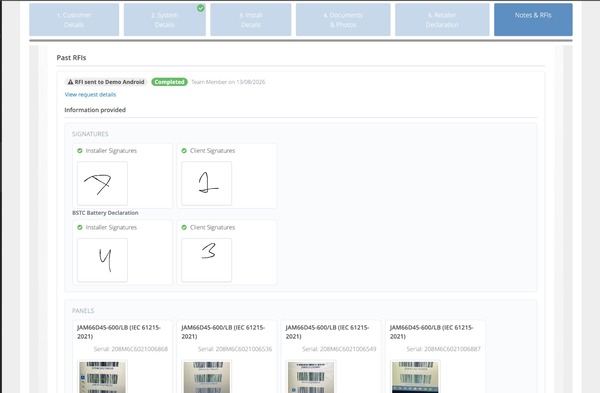
Complete & Review: Once all requirements are fulfilled, the installer can complete the RFI. The retailer/trader can then view all the information provided within the same RFI window.
Still need a hand?
If you have any questions, please do not hesitate to reach out to us.
Contact the BridgeSelect Support Team