
If you use Xero, Bridge Select can build the import file for the certificates you buy from your retailers. Set up once how each certificate should appear in Xero, then download a CSV from the jobs list whenever you need it. Each certificate on a job becomes one line in the file, with the retailer as the contact.
All names, jobs and prices in this guide are demo data.
🔌 Turn on Xero
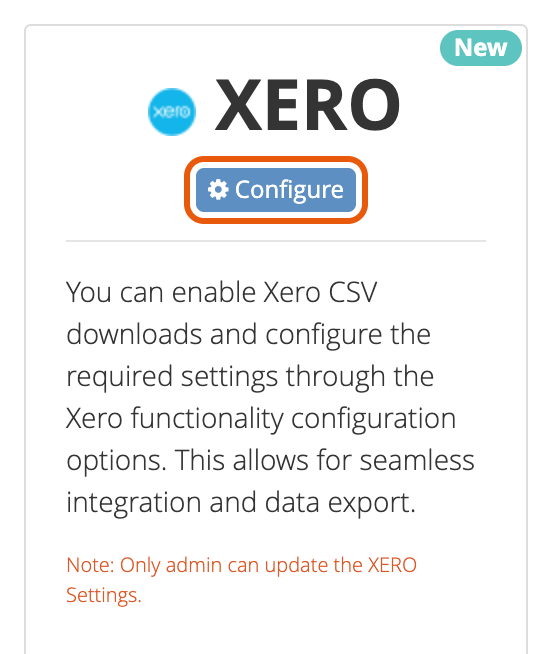
Go to Settings > API and Integrations, find the XERO card and click Configure.
Switch on Enable XERO, tick the Allowed Tabs you want a Download button on, and click Save. Once saved, the settings for each certificate appear below.
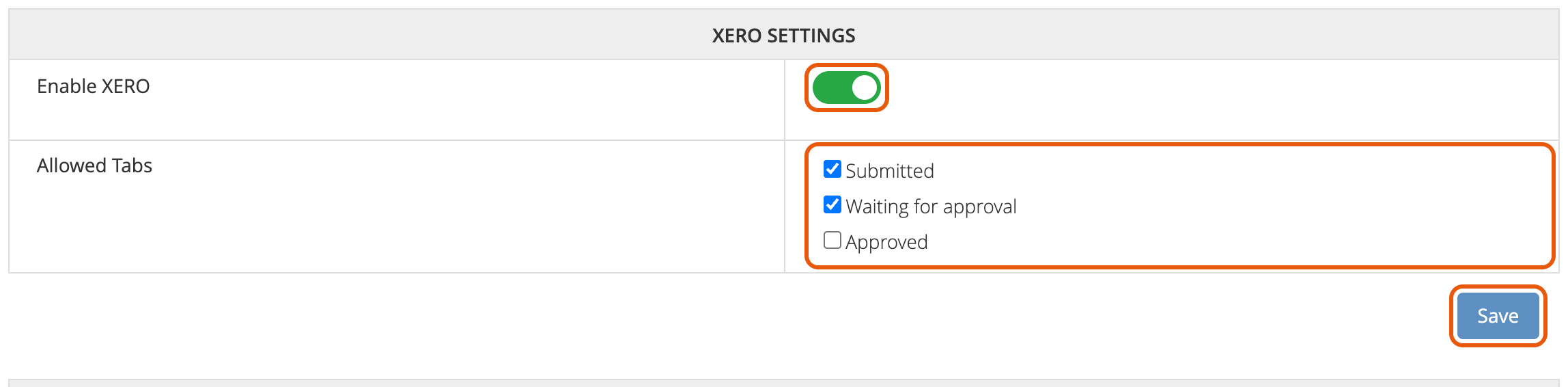
| Allowed Tab | Adds a Download button to | Invoice Date in the file |
|---|---|---|
| Submitted | The Completed tab | The date the job was completed |
| Waiting for approval | The Waiting for approval tab | The date the certificate was processed |
| Approved | The Approved tab | The date the certificate was approved |
⚙️ Set up your certificates
There is one block for each certificate your account trades. Each block is used by the Download button on that certificate's jobs list. Fill in the ones you use, then click Save at the bottom of the page.
| Settings block | Used when you download from |
|---|---|
| Solar PV STCs | STCs (Solar PV) |
| Solar PV VEECs | VEECs (Solar PV) |
| Battery STCs | BSTC |
| PRCS(BESS1), PRCS(BESS3), PRCS(BESS4) and PRCS(BESS5) | PRCs (BESS 1, 3, 4, 5). One file, with each certificate using its own block. |
| PRCS(BESS2) | PRCs (BESS2) |
| Hotwater STCs | STCs (Hot Water) |
| Hotwater VEECs, ESCs and REPS | VEECs, ESCs and REPS (Hot Water) |
| Aircon VEECs and ESCs | VEECs and ESCs (Aircon) |
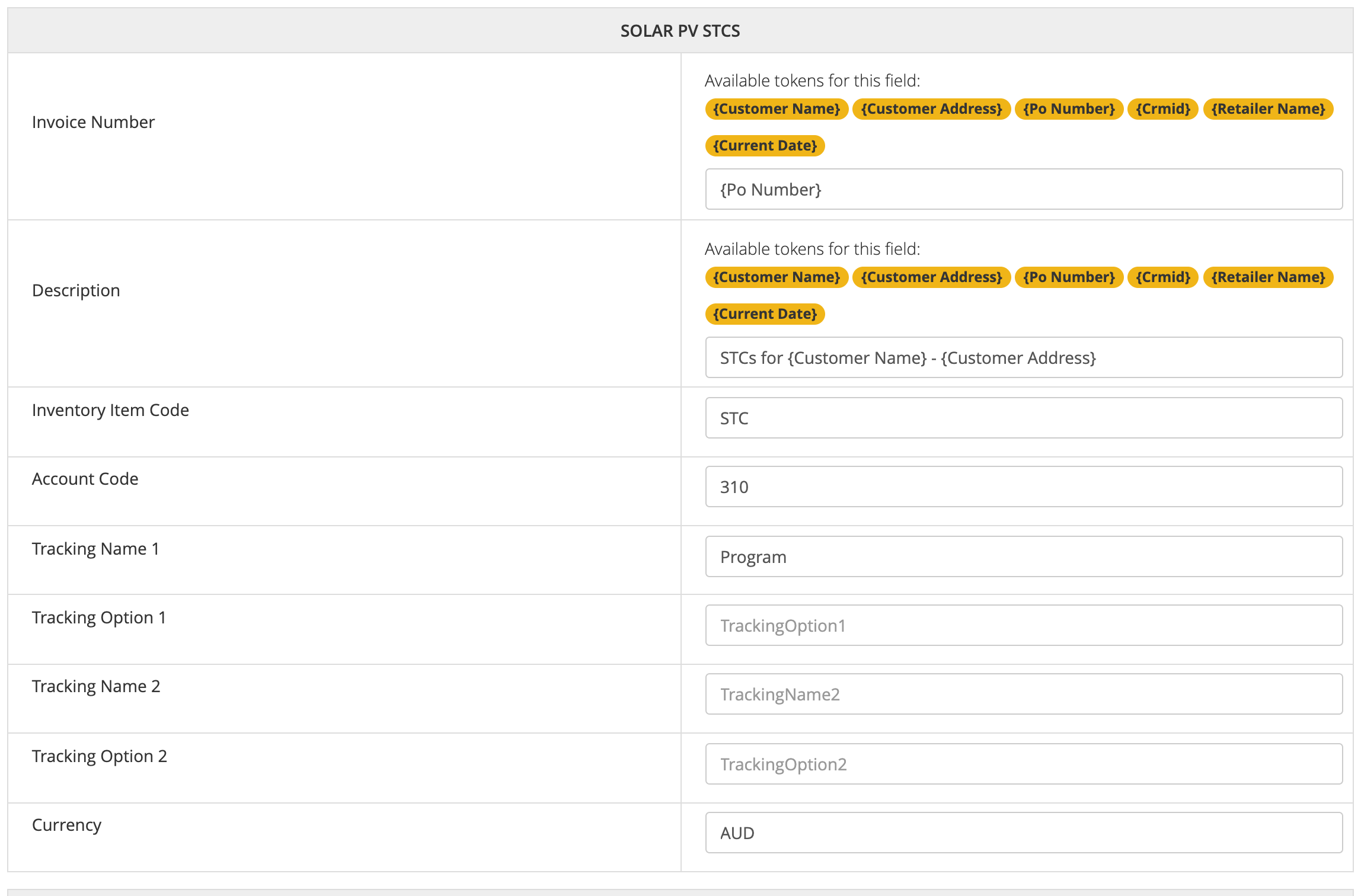
What each field does
| Field | What it does | If left blank |
|---|---|---|
| Invoice Number | The bill number in Xero. Xero groups lines with the same number into one bill. | Solar PV STCs, Battery STCs and BESS1, 3, 4 and 5: the PO number, or the customer name and address if there is no PO. Hot water STCs: the customer name and address. VEECs, ESCs, REPS and BESS2: for example "VEECs for customer - address". |
| Description | The line description. | The PO number. VEECs, ESCs and REPS use, for example, "VEECs for customer - address". |
| Inventory Item Code | Your Xero item code for this certificate. | STC for Solar PV and hot water STCs, PRC for BESS1, 3, 4 and 5, otherwise empty. |
| Account Code | The Xero account the line is coded to. | Empty |
| Tracking Name 1 / Option 1 | Your first Xero tracking category and option. | Option 1 is SPV or Non SPV for Solar PV STCs, and the certificate name (BSTC, BESS1 to BESS5) for battery certificates. |
| Tracking Name 2 / Option 2 | Your second tracking category and option. | Empty |
| Currency | The currency code, for example AUD. | Empty |
ESC blocks: if you leave Account Code, a Tracking field or Currency empty in HOTWATER ESCS, ESC lines use the value from HOTWATER VEECS. Empty fields in AIRCON ESCS use AIRCON VEECS. Fill them in to give ESCs their own codes.
Tokens
Invoice Number and Description can include tokens, which are replaced with the job's details when you download. Click a token to add it where your cursor is.
| Token | Replaced with |
|---|---|
{Customer Name} | The customer's first and last name |
{Customer Address} | The installation address |
{Po Number} | The job's PO number |
{Crmid} | The CRM ID on the job |
{Retailer Name} | The name of the retailer's Bridge Select account |
{Current Date} | The download date, as YYYYMMDD |
⬇️ Download the Xero file
Open the jobs list for the certificate, for example
STCs (Solar PV), and go to a tab you allowed. Pick the month, then click Download
 .
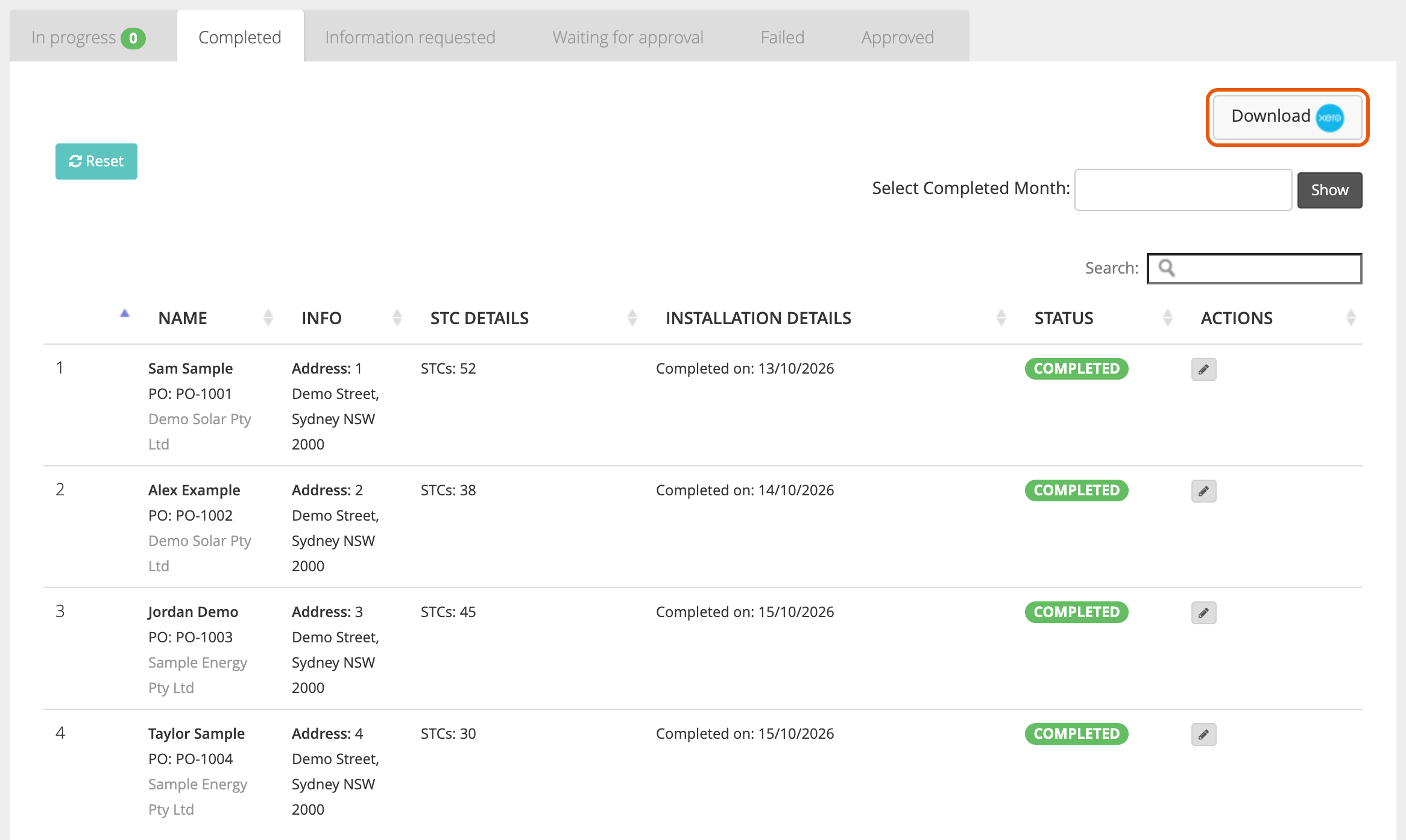
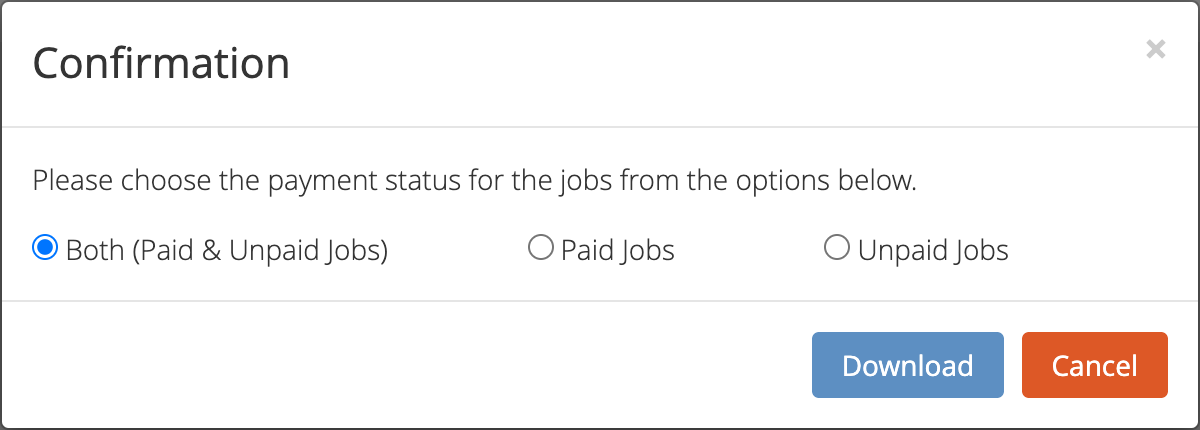
Choose which jobs to include and click Download: Both paid and unpaid, only Paid, or only Unpaid. On the PRCs (BESS 1, 3, 4, 5) list this is checked for each certificate separately.
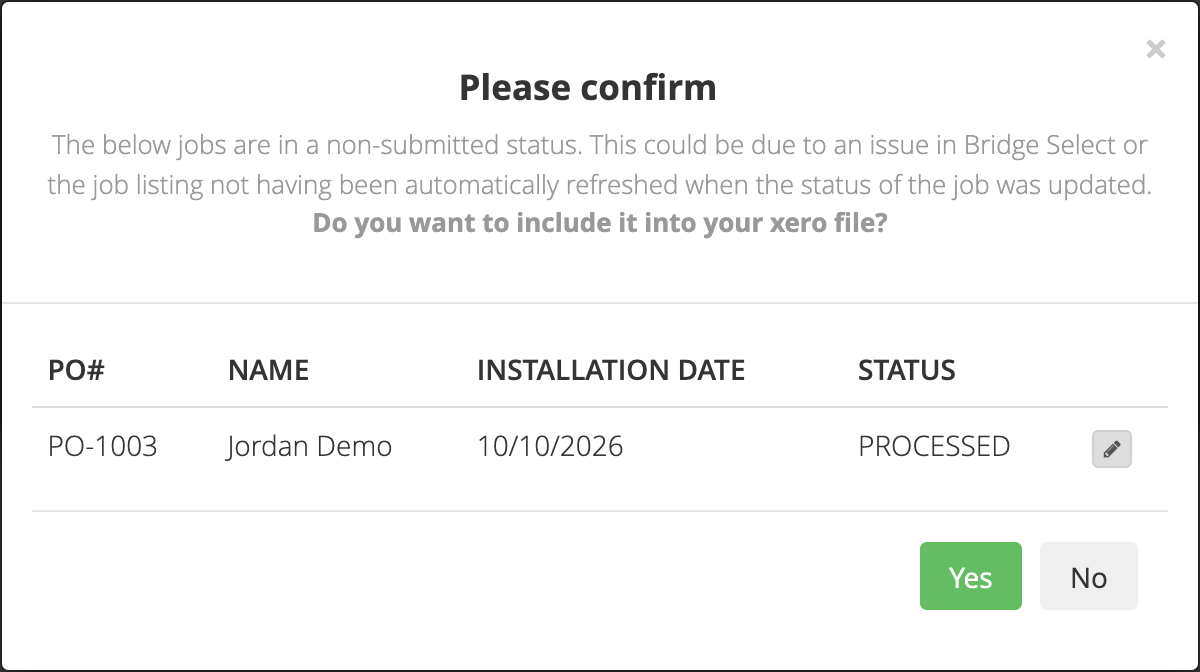
If a job has moved on since the list loaded (for example it shows in Completed but is now PROCESSED), you're asked whether to include it. On the PRCs (BESS 1, 3, 4, 5) list, the status shows which certificate it is, for example PROCESSED (BESS3). Click Yes to include it or No to leave it out. The pencil opens the job in a new tab.
The file downloads as <number> - completed jobs - xero.csv (or
processed / approved), ready to import into Xero.
The Bulk Checked Jobs Download page also has Download XERO buttons. They use the same settings and build the file from the completed jobs you've selected there.
📄 What's in the file
The file uses Xero's standard CSV import columns, with one line per certificate. Using the settings above, the demo jobs (with Jordan Demo left out) give:
| Contact Name | Invoice Number | Invoice Date | Due Date | Description | Qty | Unit Amount | Tracking Option 1 |
|---|---|---|---|---|---|---|---|
| Demo Solar Pty Ltd | PO-1001 | 13-10-2026 | 16-10-2026 | STCs for Sam Sample - 1 Demo Street Sydney NSW 2000 | 52 | 38.20 | SPV |
| Demo Solar Pty Ltd | PO-1002 | 14-10-2026 | 23-10-2026 | STCs for Alex Example - 2 Demo Street Sydney NSW 2000 | 38 | 38.20 | Non SPV |
| Sample Energy Pty Ltd | PO-1004 | 15-10-2026 | 26-10-2026 | STCs for Taylor Sample - 4 Demo Street Sydney NSW 2000 | 30 | 37.90 | Non SPV |
Every line also gets Item Code STC, Account Code 310, Tracking Name 1
Program and Currency AUD from the settings.
- Contact Name: the retailer's name from your retailer list, so each retailer gets its own bills.
- Invoice Date: depends on the tab, as shown in Turn on Xero.
- Due Date: for STCs, Battery STCs, VEECs, ESCs and REPS, 3 business days after the invoice date for SPV jobs and 7 business days for other jobs. BESS1 to BESS5 are 3 business days.
- Quantity: the number of certificates, rounded down to a whole number.
- Unit Amount: the price per certificate on the job.
- Tax Type: GST on Expenses when the job's owner is a business, otherwise GST Free Expenses.
- The email and postal address columns are left empty.
Lines that are left out
- Certificates waiting on a request for information (RFI).
- Jobs outside the payment status you chose.
- Jobs you said No to in the confirm window.
- Jobs that aren't loaded in the tab, for example from another month.
❓ Common questions
- I can't see the Download button.
- An admin needs to switch on Enable XERO and tick that tab under Allowed Tabs. Try refreshing the page after saving.
- Does the search box change what's in the file?
- No. The file includes every job loaded in the tab for the month shown, filtered only by the payment status you choose.
- Can I get all certificates for a job in one file?
- Each jobs list has its own Download button, so download from each list you need. The PRCs (BESS 1, 3, 4, 5) list is the exception: its file has a line for each of BESS1, BESS3, BESS4 and BESS5, each using its own settings block.
- My file looks different from this guide.
- Some accounts have custom Xero rules set up with Bridge Select, for example fixed invoice numbers or tracking. Contact support if you're not sure which rules apply to you.
- Can my team download the file?
- Yes. Anyone in your team can download once Xero is enabled. Only admins can change the settings.
For platform support, please contact your Bridge Select representative.
Still need a hand?
If you have any questions, please do not hesitate to reach out to us.
Contact the BridgeSelect Support Team