
A price ladder lets a trader pay a retailer a different price per certificate depending on how big the job is. For example, small home systems can get one price and large commercial systems another, or a battery job can be priced by how many PRCs it creates. The ladder works on top of the retailer's normal price, whether that is an individual price or a set of payment terms, and the final price is worked out automatically when the job is completed.
All names, prices and jobs in this guide are demo data.
For Traders
Set up a ladder for one retailer or many, use it with payment terms, and set up ladders for BESS PRCs.
Go to the trader steps →For Retailers
See where your ladder prices show, how estimates work and how to choose a payment term when you complete a job.
Go to the retailer view →💡 What is a price ladder and why use it?
A ladder is a short list of tiers. Each tier covers a range of job sizes and says how the price changes for jobs in that range. Every job falls into one tier, and that tier sets the price for all certificates on the job.
- Volume pricing: pay more per STC on larger systems, or less on very small ones where the admin cost per certificate is higher.
- BESS PRCs: set the price per PRC by how many PRCs a battery job creates, for example $0.25 off per PRC up to 500 PRCs and $0.40 off per PRC above that.
- Works with payment terms: the retailer still chooses how quickly they want to be paid, and the ladder is applied on top of the term they choose.
- No manual work: once saved, every job is priced automatically. Retailers can see the ladder and the estimated price on their jobs.
Where you can use a ladder
🧮 How the final price is worked out
The final price per certificate is built in three steps:
Tier price types
Each tier uses one of five price types. The examples below start from a price of $38.00.
| Price type | What it does | Tier value | Result |
|---|---|---|---|
| Fixed $ | Replaces the price with the tier price. Only with an individual price. | 38.50 | $38.50 |
| + $ | Adds a dollar amount | 0.20 | $38.20 |
| - $ | Takes off a dollar amount | 0.30 | $37.70 |
| + % | Adds a percentage | 1 | $38.38 |
| - % | Takes off a percentage | 2 | $37.24 |
Good to know
- One tier per job. The job's size is checked against the tiers from the top, and the first tier it fits decides the price.
- Jobs outside every tier are paid the normal price (the chosen payment term, or the individual price).
- The price can never go to $0 or below. If a tier would do that, the ladder is skipped for that job and the normal price is paid.
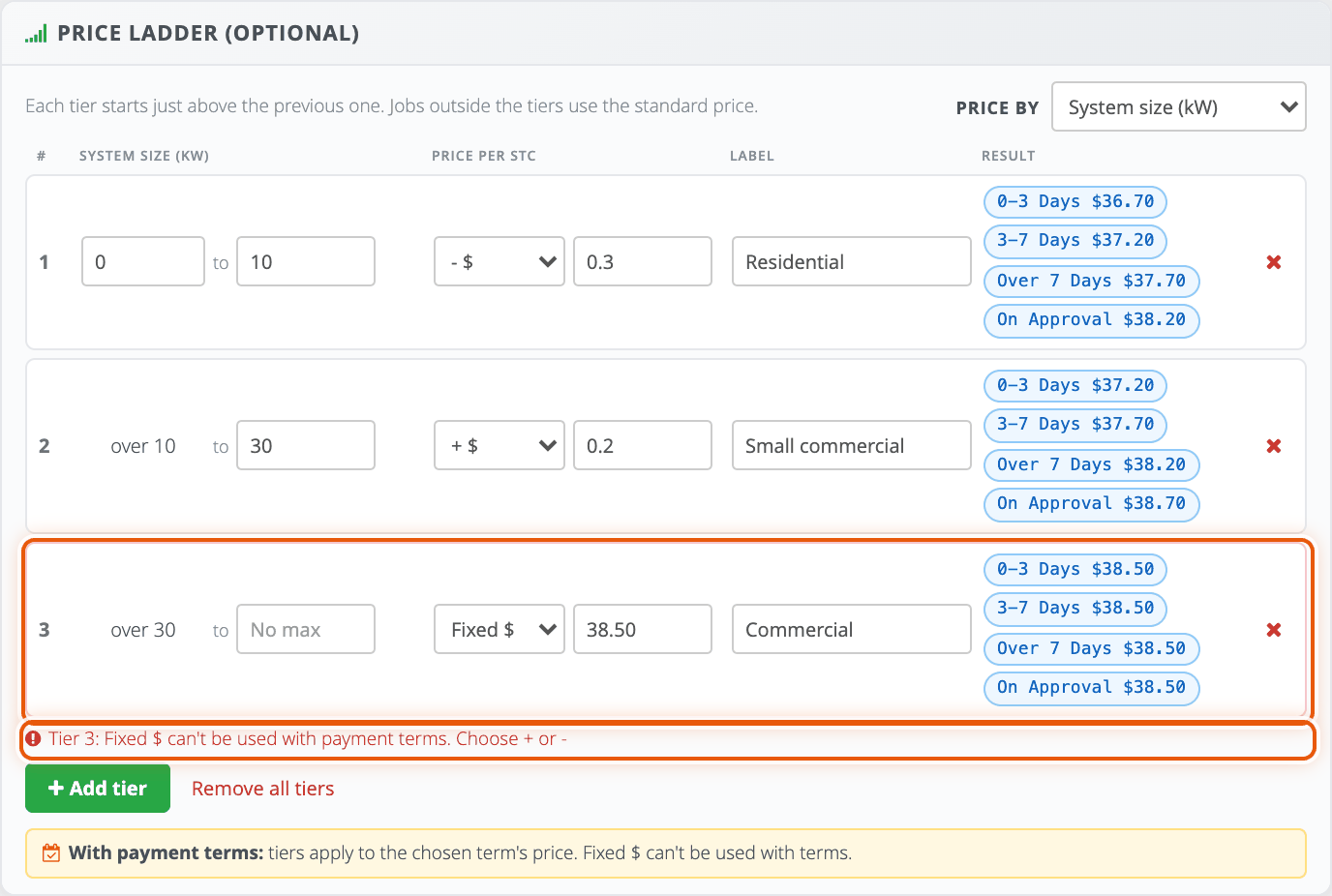
- Fixed $ can't be used with payment terms. A fixed tier price would replace the term price, so the retailer would get the same price however quickly they are paid. With terms, use + or - so each term keeps its own price.
- The price is set when the job is marked Complete. Until then the retailer sees an estimate. Changing a ladder later doesn't change jobs that are already completed.
📊 Examples
Example 1 · Individual price with a ladder (PV STCs by system size)
The retailer is paid a fixed $38.00 per STC. The trader adds three tiers by system size.
| Tier | System size | Price type | Price per STC |
|---|---|---|---|
| 1 · Residential | 0 to 10 kW | - $0.30 | $37.70 |
| 2 · Small commercial | Over 10 to 30 kW | + $0.20 | $38.20 |
| 3 · Commercial | Over 30 kW (no max) | Fixed $38.50 | $38.50 |
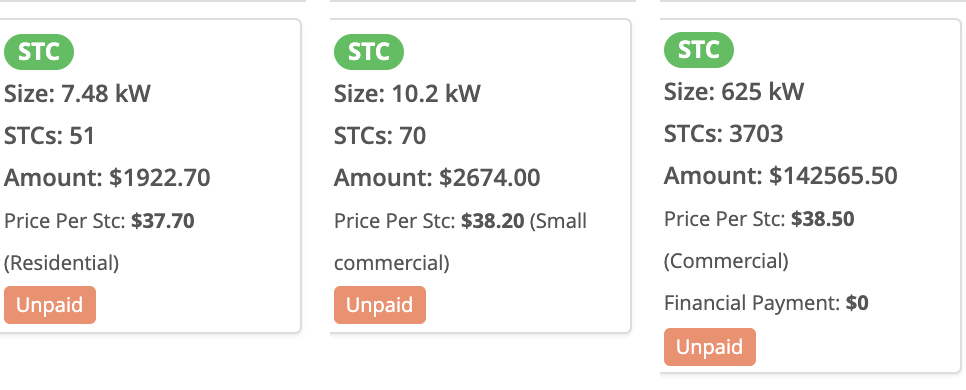
A 10.2 kW job with 70 STCs is in tier 2: 70 × $38.20 = $2,674.00.
Example 2 · Payment terms with a ladder (PV STCs)
The retailer has four payment terms. The faster they want to be paid, the lower the price. The ladder uses + and - only, so it is applied on top of whichever term they choose.
| Payment term | Term price | Up to 10 kW - $0.30 | Over 10 to 30 kW + $0.20 | Over 30 kW + $0.50 |
|---|---|---|---|---|
| 0-3 Days | $37.00 | $36.70 | $37.20 | $37.50 |
| 3-7 Days | $37.50 | $37.20 | $37.70 | $38.00 |
| Over 7 Days | $38.00 | $37.70 | $38.20 | $38.50 |
| On Approval | $38.50 | $38.20 | $38.70 | $39.00 |
Example 3 · BESS PRCs with payment terms and a ladder
Final price = spot or fixed price + payment term + ladder tier. The BESS1 price follows the $23.00 spot price, each payment term adjusts it, and the ladder adjusts the price per PRC by the number of PRCs on the job.
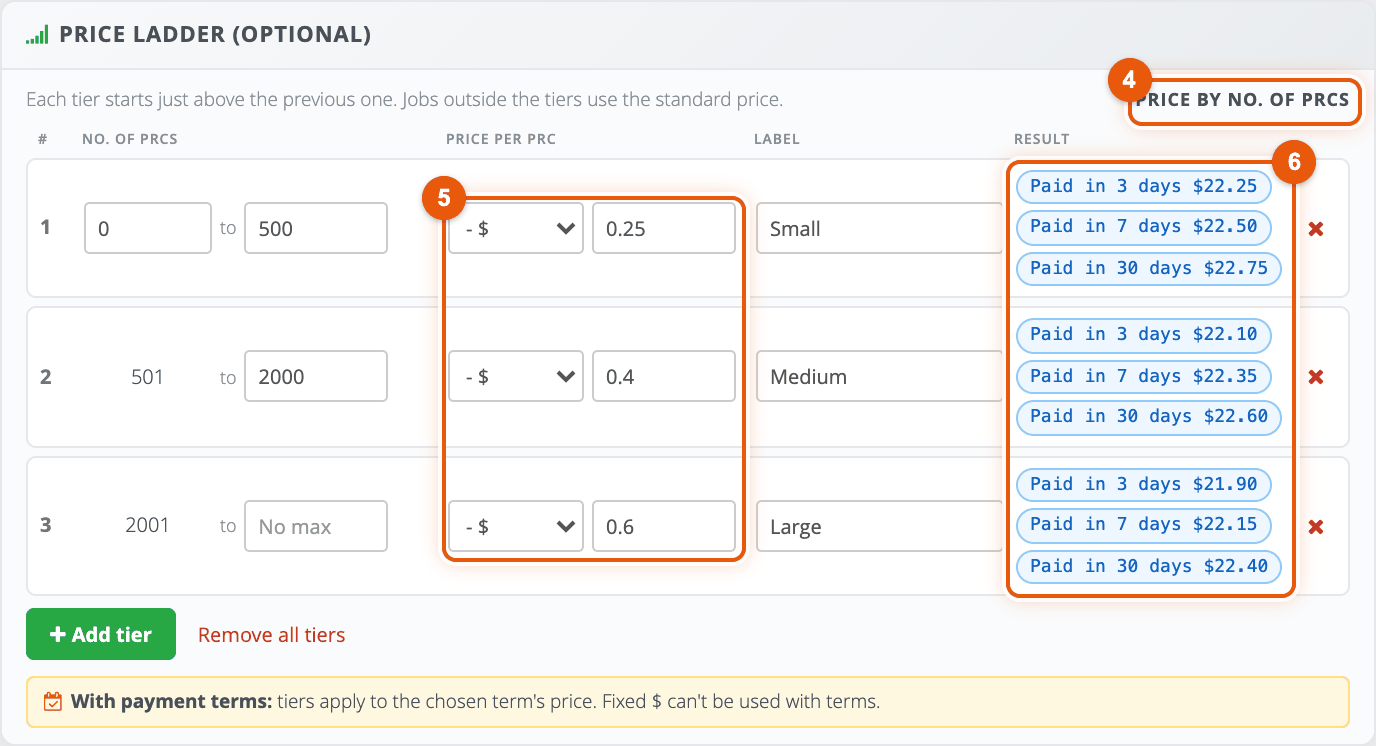
| Payment term | Term price | 0 to 500 PRCs - $0.25 | 501 to 2,000 PRCs - $0.40 | 2,001+ PRCs - $0.60 |
|---|---|---|---|---|
| Paid in 3 days (spot - $0.50) | $22.50 | $22.25 | $22.10 | $21.90 |
| Paid in 7 days (spot - $0.25) | $22.75 | $22.50 | $22.35 | $22.15 |
| Paid in 30 days (spot) | $23.00 | $22.75 | $22.60 | $22.40 |
Because the term follows the spot price, a new spot price moves every term and the ladder tiers stay the same.
🛠️ Set up a ladder for a retailer
This follows Example 1: an individual price with three tiers by system size.
Go to Retailers > List and find the retailer (here in the Favourites tab). Their certificate prices are in the Pricing column.
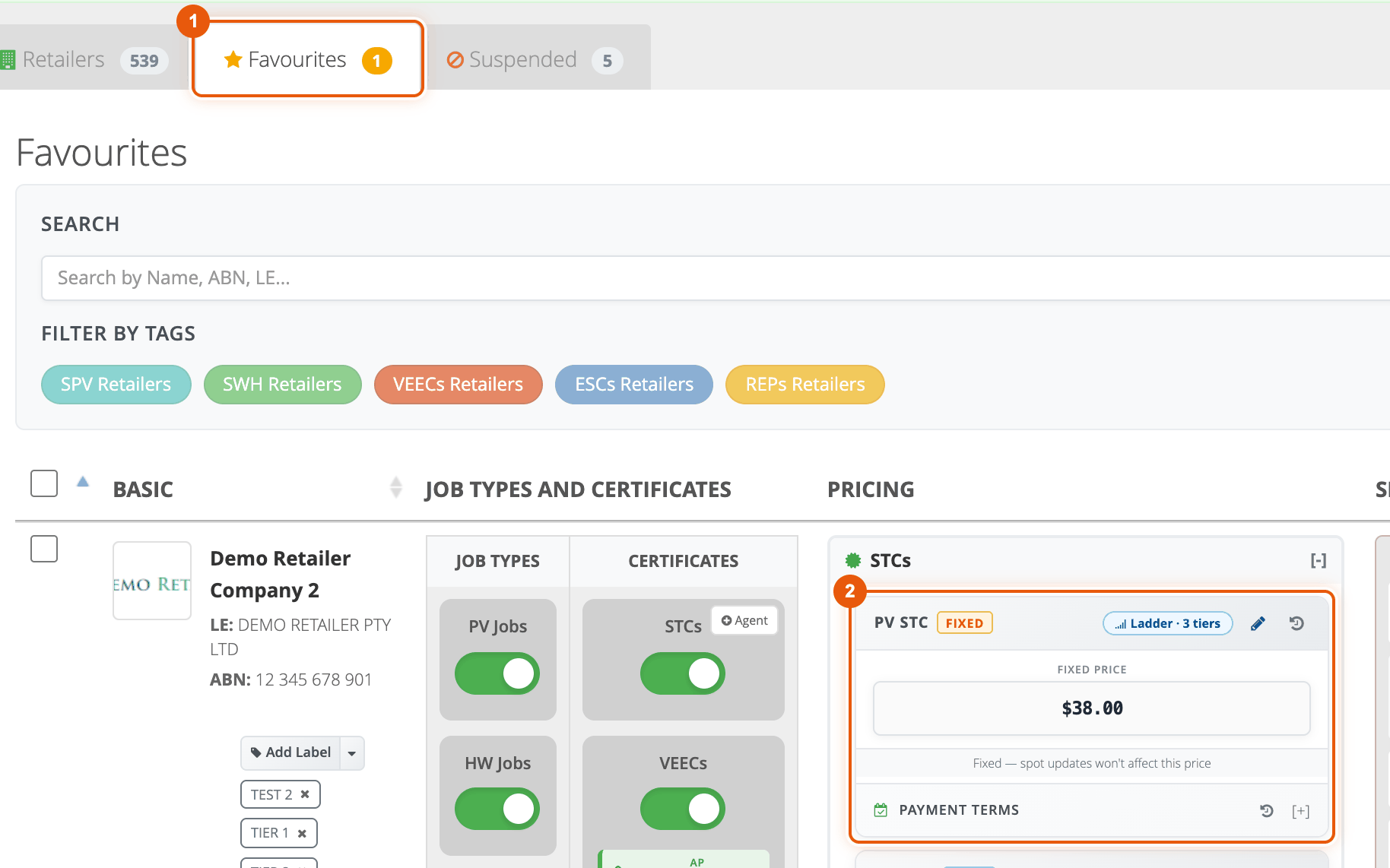
On the PV STC price card, click the pencil to open the Edit Certificate Price window. Once a retailer has a ladder, the card also shows a Ladder button with the number of tiers, which opens the same window.
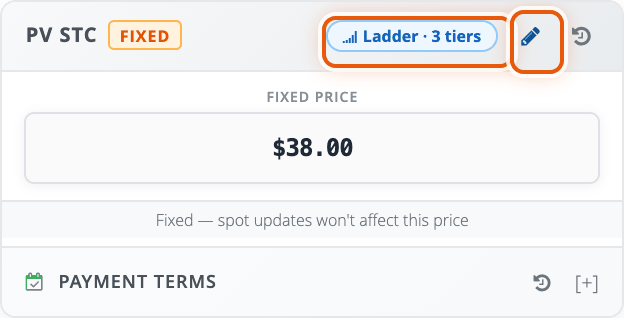
Set the price, then add the tiers under Price ladder (optional):
- 1 Method: choose Individual price (for payment terms, see the next section).
- 2 SPOT or FIXED: SPOT follows the spot price with an adjustment; FIXED keeps the price you type.
- 3 Enter the price, here $38.00.
- 4 Price by: choose System size (kW) or No. of STCs.
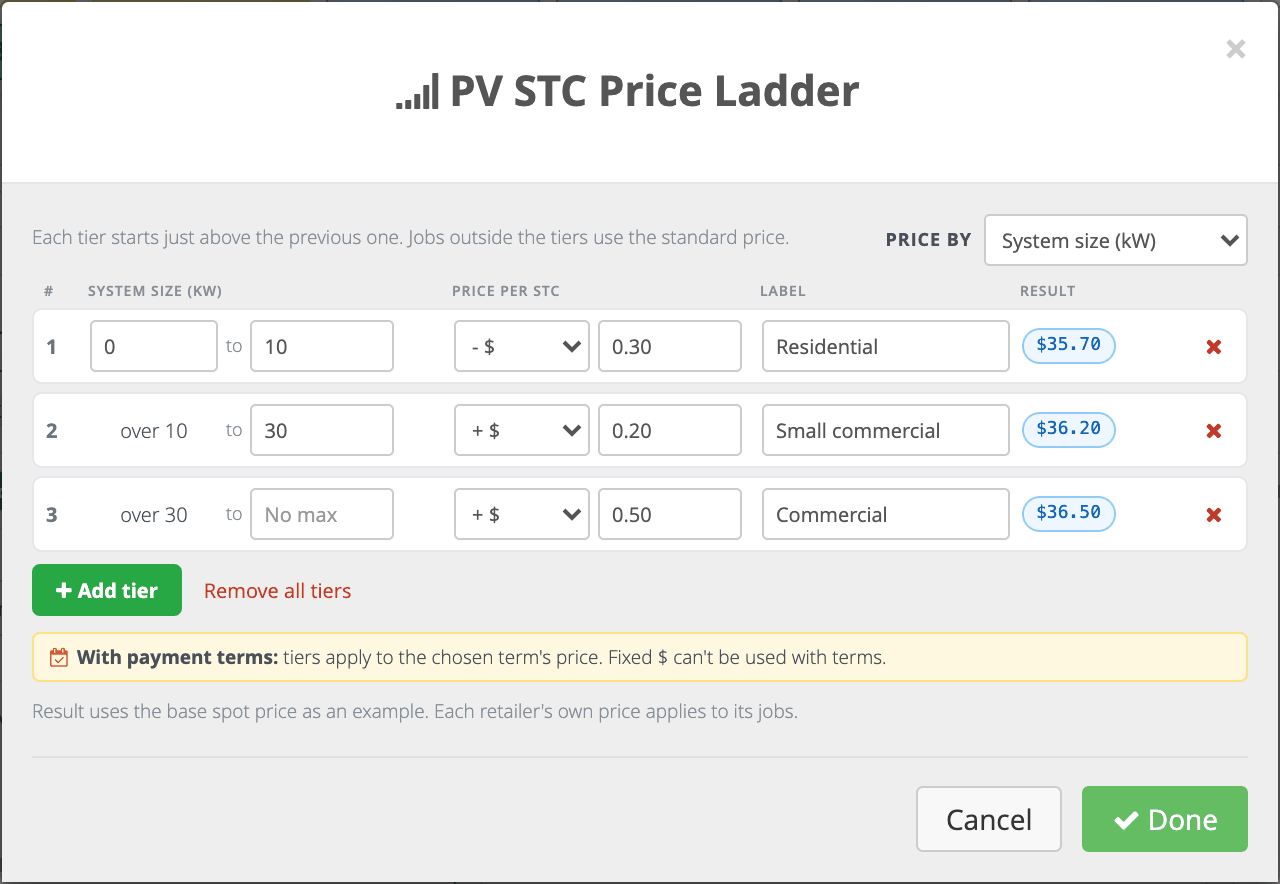
- 5 Click + Add tier for each tier. Enter where it ends in to, choose the price type and value, and add an optional Label (up to 40 characters, for example "Residential"). Each new tier starts just above the previous one, and the last tier can be left as No max.
- 6 Result shows the price per STC for each tier, so you can check it before saving.
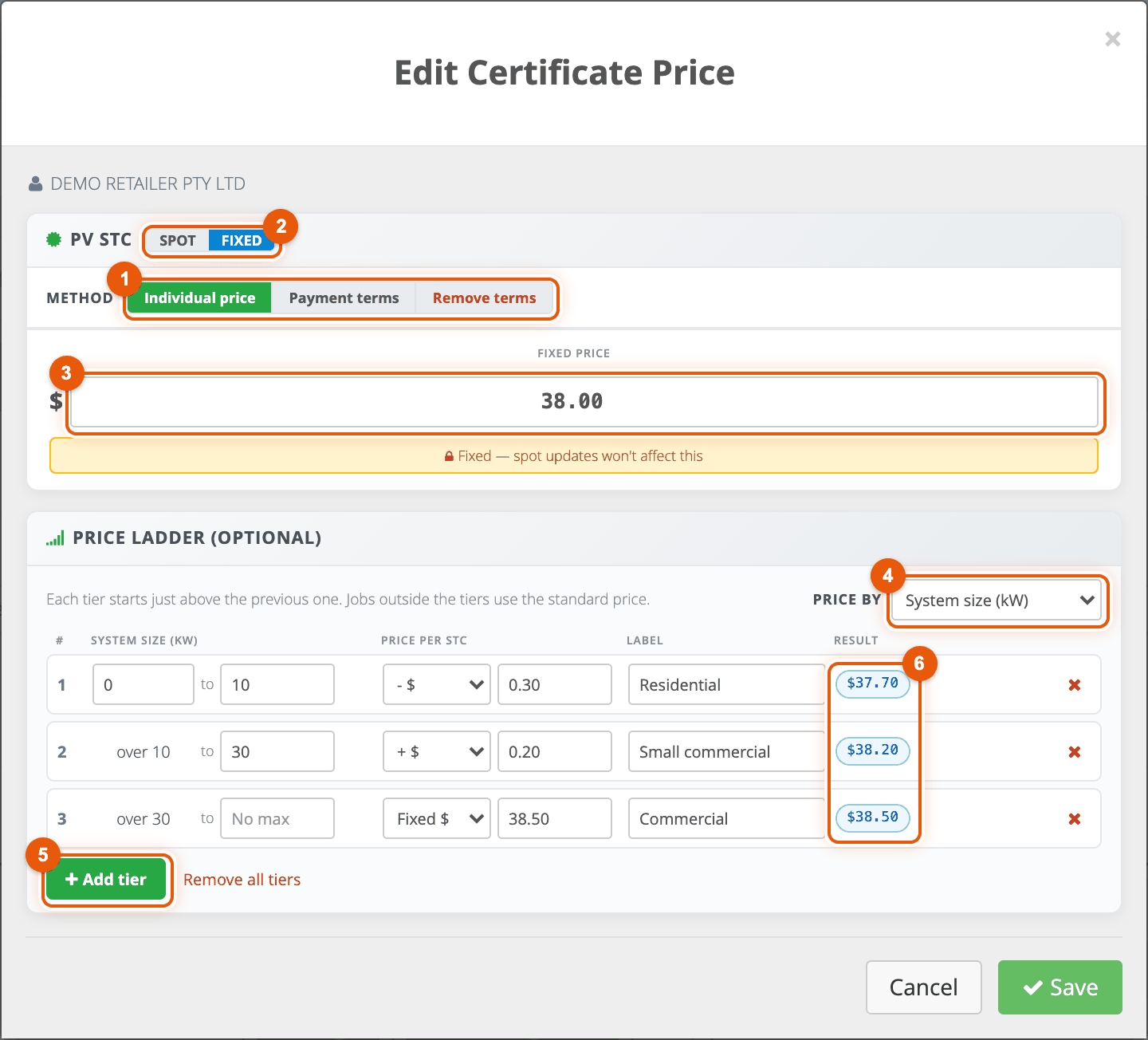
Click Save. The confirmation shows what was saved, and the price card now shows Ladder · 3 tiers. Jobs completed from now on are priced with the ladder.
🗓️ Use a ladder with payment terms
This follows Example 2. The retailer chooses a payment term when they complete a job, and the ladder is applied on top of that term's price.
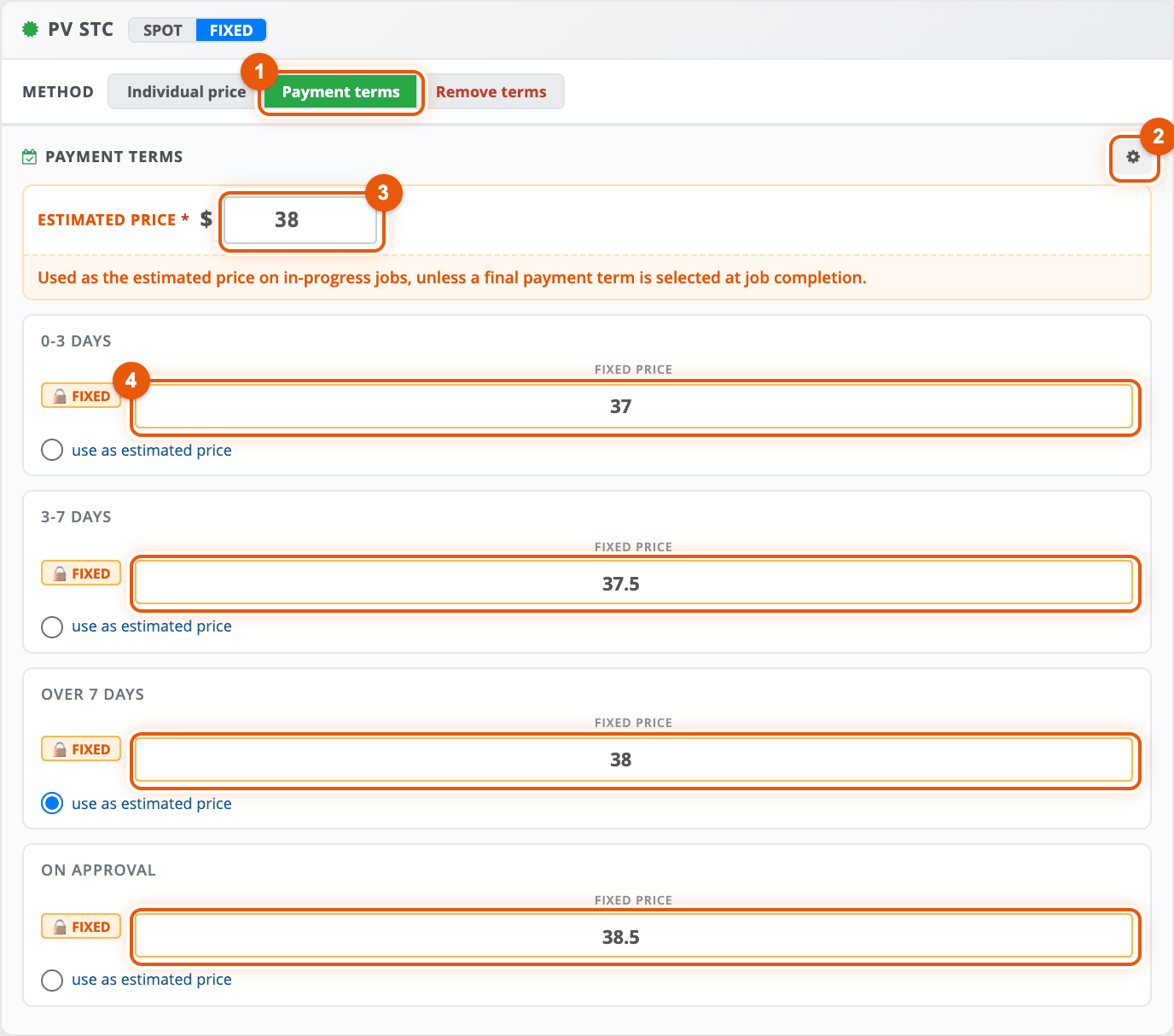
Open the price editor and set up the terms:
- 1 Choose Payment terms as the method.
- 2 Use the cog to add or rename your payment terms (see BESS PRCs for a walkthrough).
- 3 Enter the Estimated price, or tick use as estimated price on a term. Retailers see this as the estimate on in-progress jobs.
- 4 Enter the price for each term.
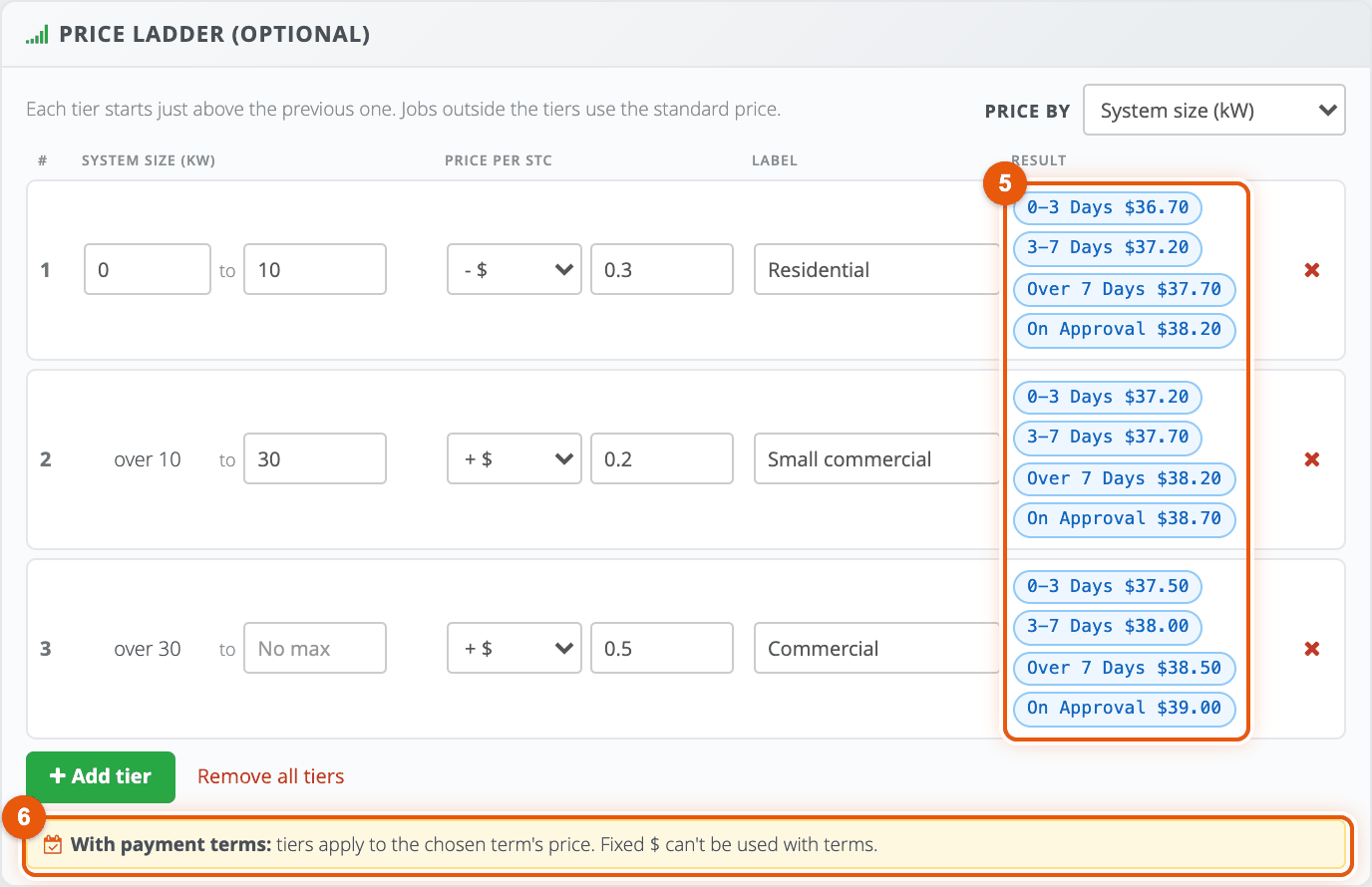
Add the tiers the same way as before. With payment terms:
- 5 Result shows the price for every term in every tier, so you can see exactly what the retailer will be offered.
- 6 The note reminds you that tiers apply to the chosen term's price and that Fixed $ isn't available.
If a tier already uses Fixed $ (for example a ladder made with an individual price), it is flagged when you switch to payment terms. Change it to + $ or - $ before you save.
Click Save. The card shows the term prices and the ladder badge.
🔋 BESS PRCs: payment terms and a ladder
This follows Example 3. Open the editor from the BESS1 card in the PRCs section. BESS2 to BESS5 work the same way, each with its own price, terms and ladder.
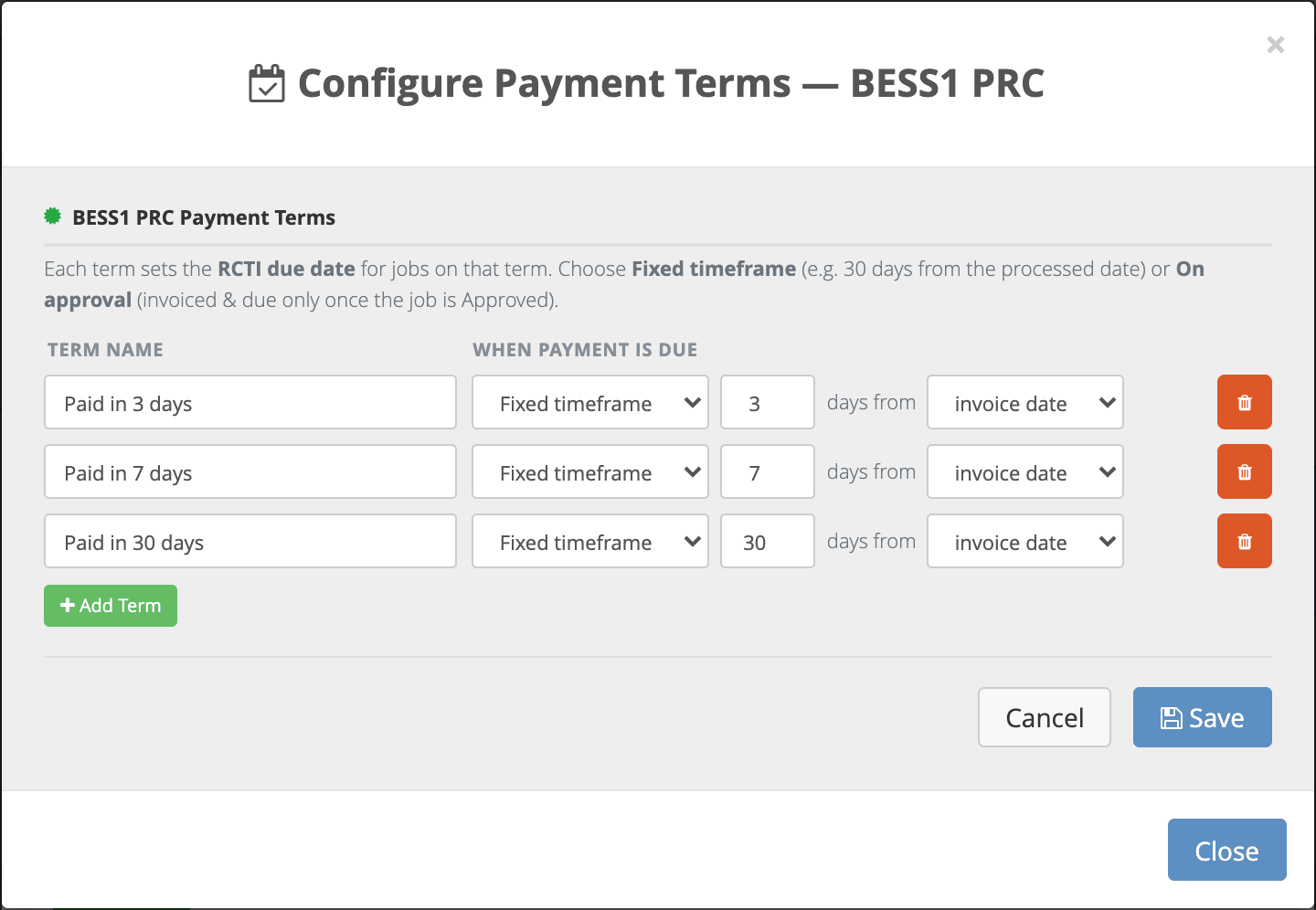
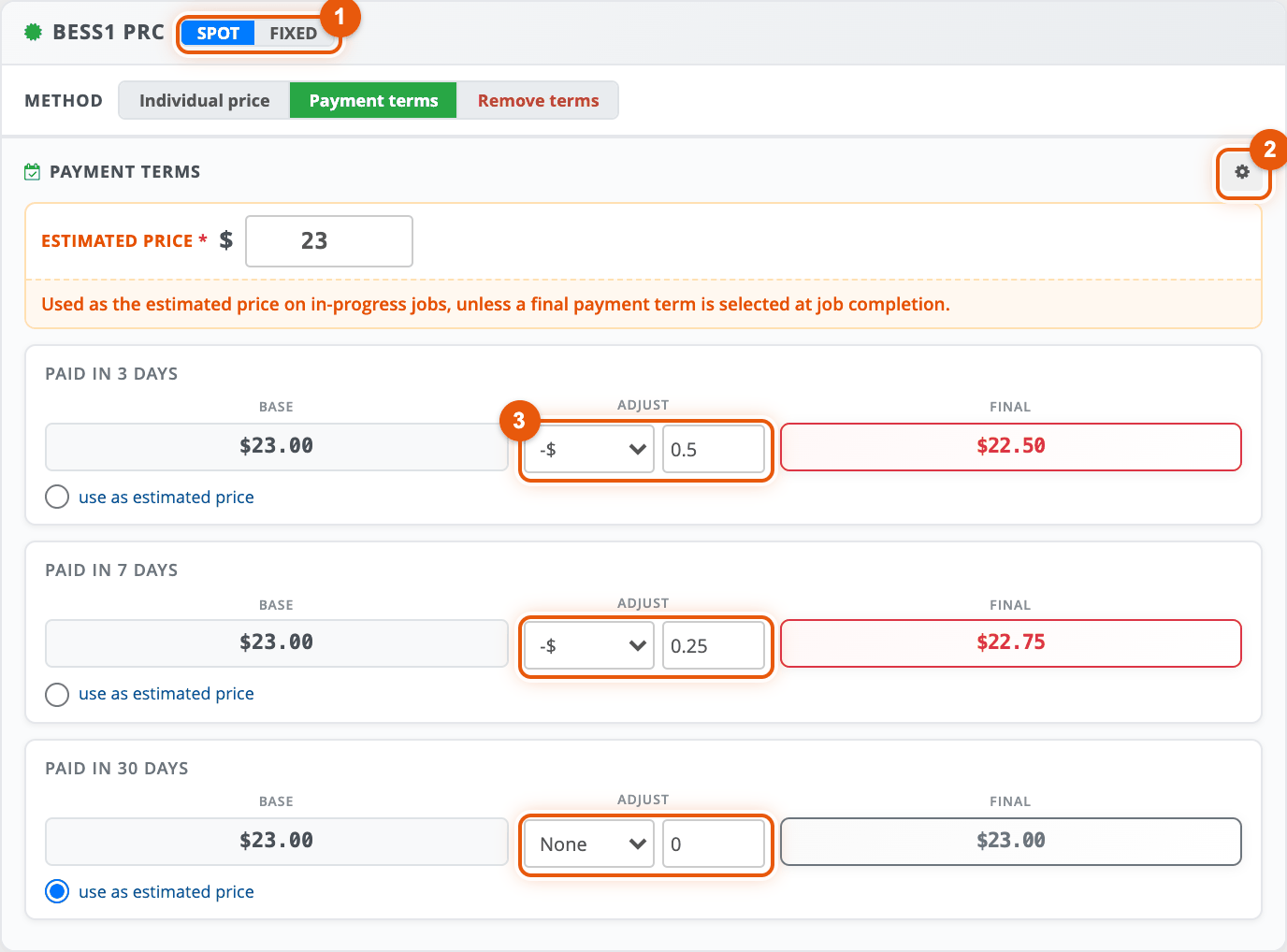
Choose Payment terms. If no terms exist yet for this certificate, click the cog (or Configure payment terms), then Add Term for each one and give it a name. If you use RCTI invoicing, you can also set when payment is due. Click Save.
Set each term's price:
- 1 SPOT makes every term follow the BESS1 spot price.
- 2 The cog takes you back to the term list if you need to change it.
- 3 Adjust each term. Here, paid in 3 days is spot - $0.50 and paid in 7 days is spot - $0.25.
Add the ladder tiers:
- 4 BESS ladders are always priced by number of PRCs. Tier limits are whole PRCs, so 0 to 500 is followed by 501 to 2,000.
- 5 Use - $ to take an amount off the price per PRC.
- 6 Result shows the price for each term in each tier.
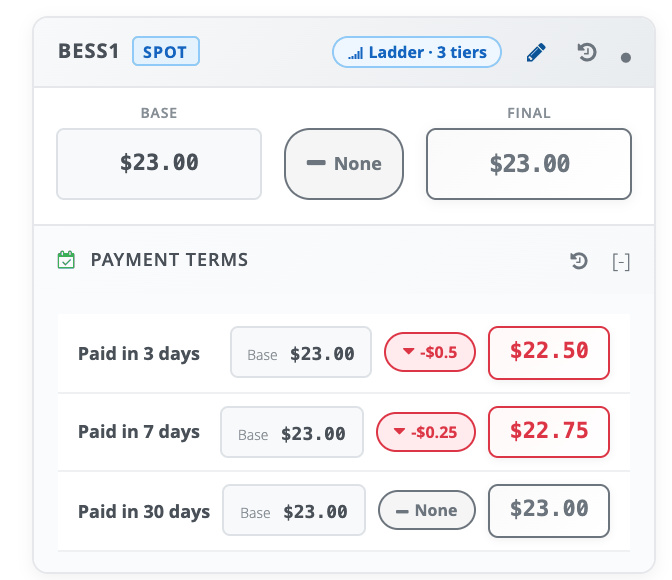
Click Save. The BESS1 card shows the three term prices and Ladder · 3 tiers.
📦 Set a ladder for many retailers at once
Tick the retailers in the list. The Bulk Actions Panel opens at the top of the page. Open Certificate Pricing Adjustments.
- 1 Tick the certificate type: STCs for the PV STC card, or PRCs for the BESS1 to BESS5 cards.
- 2 In the card's Price ladder (optional) section, choose Keep (no change), Replace (give every selected retailer this ladder) or Remove (delete their ladders).
- 3 Click Save All Adjustments to selected retailers.
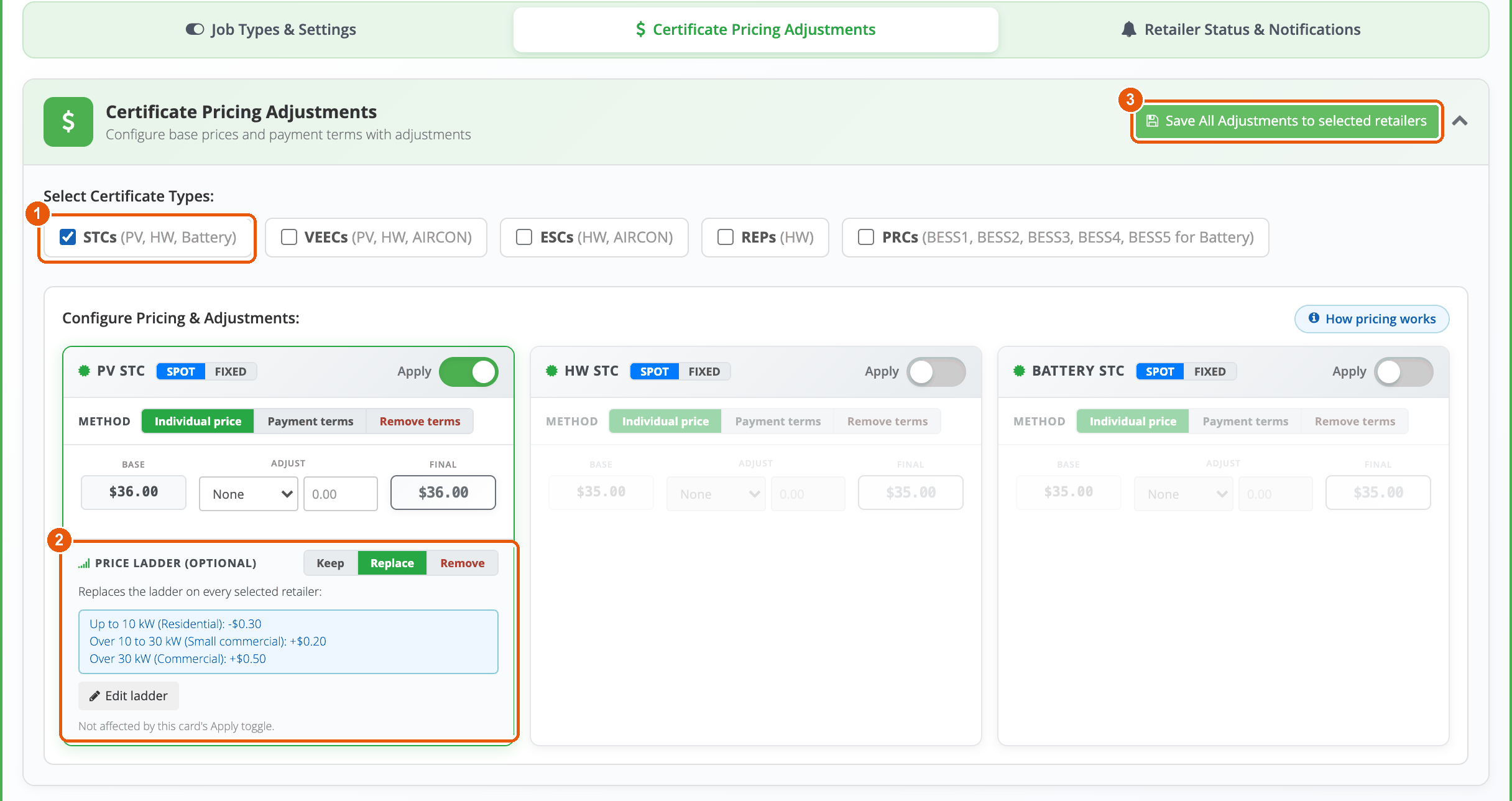
Choosing Replace opens the ladder editor. Add the tiers and click Done. Use Edit ladder on the card to change them again. The Result column uses the spot price as an example, because each retailer's own price applies to its jobs.
🕘 Check what changed
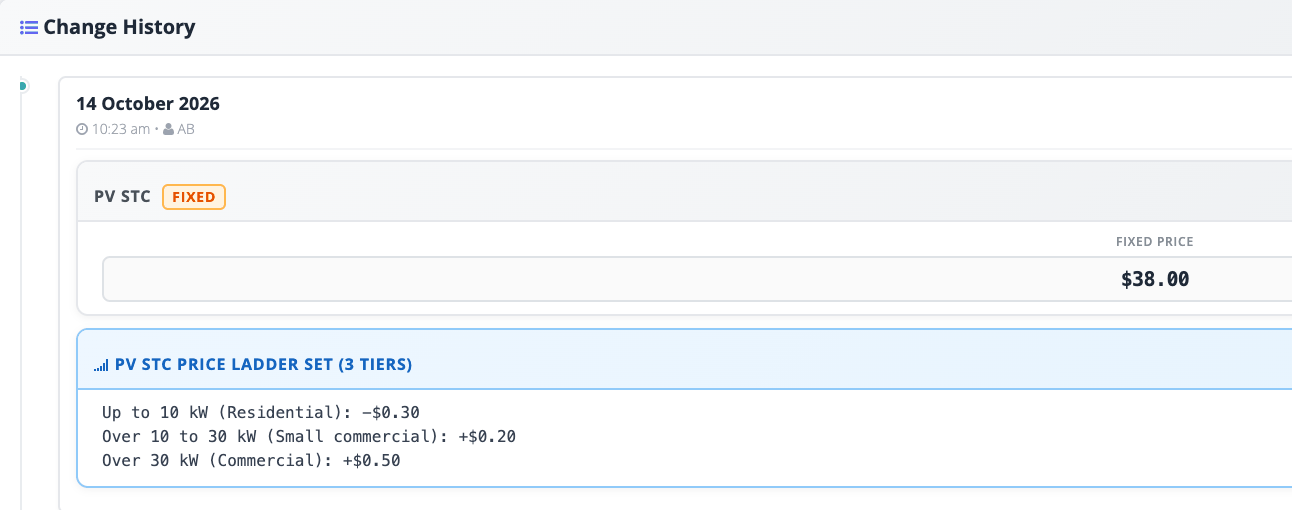
Every ladder change is recorded. Click the history icon on a price card to see who changed the price or ladder, when, and the tiers that were saved. Ladder changes also appear in View Logs.
👀 See your prices and ladder
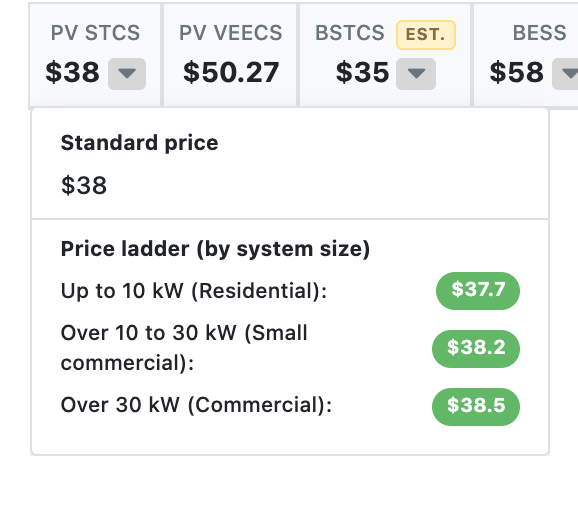
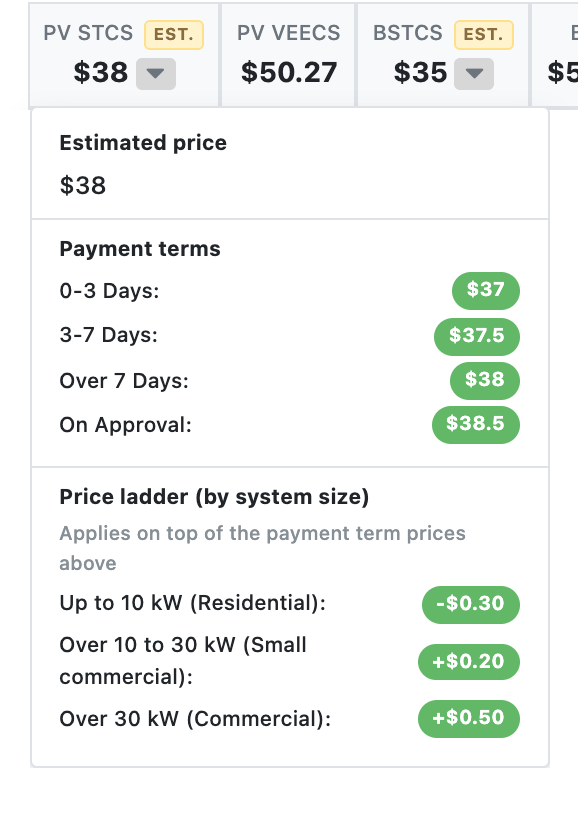
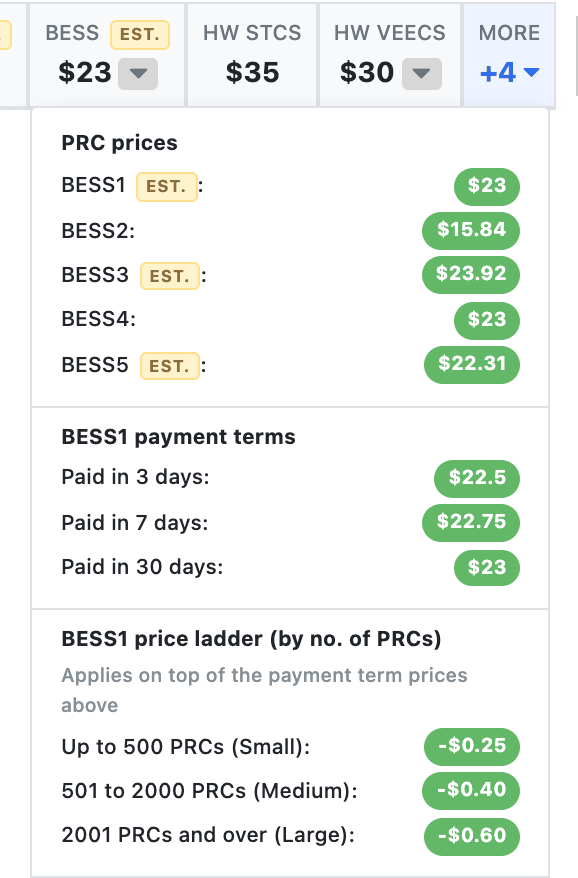
Click a price at the top of any jobs page to open its details. With an individual price you see the standard price and the price for each tier. With payment terms you see the estimated price, each payment term, and how each tier changes the term you choose ("Applies on top of the payment term prices above").
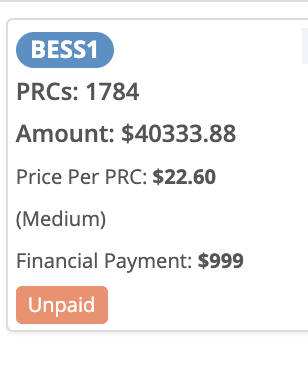
Each in-progress job shows an estimated price per STC or PRC with the ladder already applied. The tier's label is shown after the price, so you can see which tier the job is in.
✅ Choose a payment term when you complete a job
Click Submit Claim on an installed job and go through the checks. On the Please choose STC price and payment terms step, every price already includes the ladder for this job's size, marked (size/volume price) for STCs or (volume price) for PRCs.
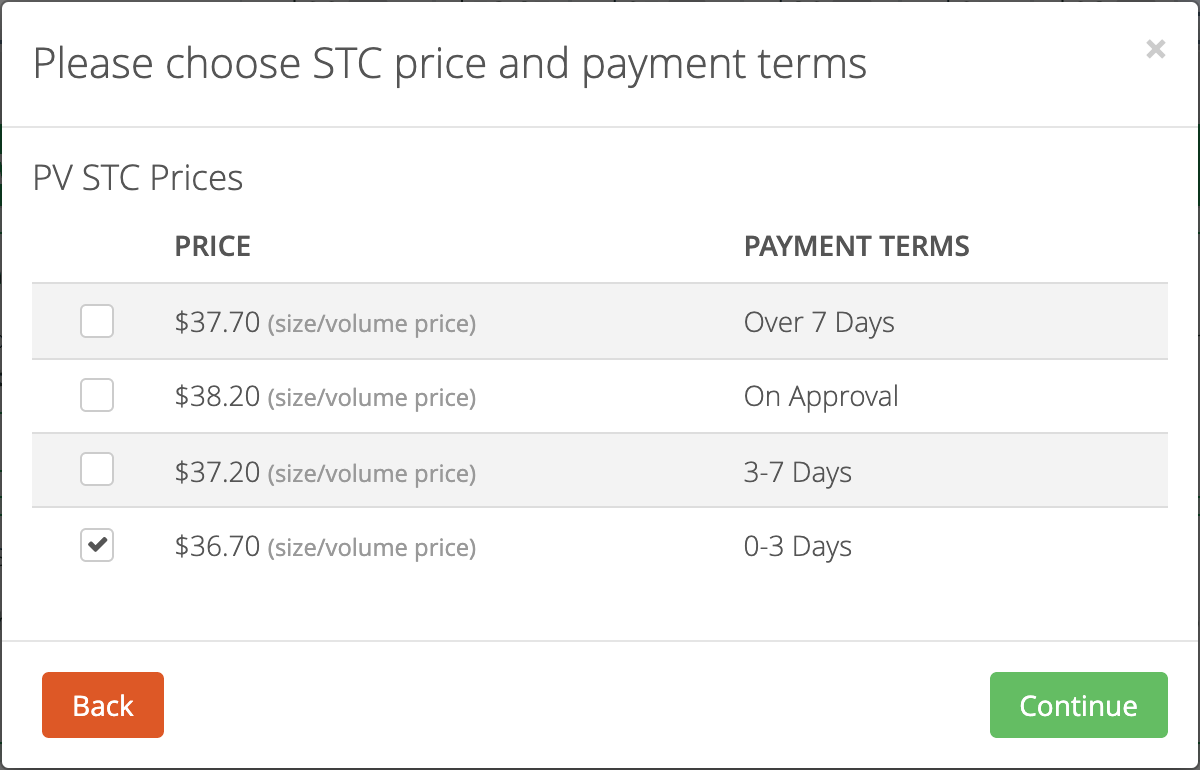
A job with BESS certificates shows a separate group for each BESS activity that has payment terms. Choose one term in each group, then click Continue.
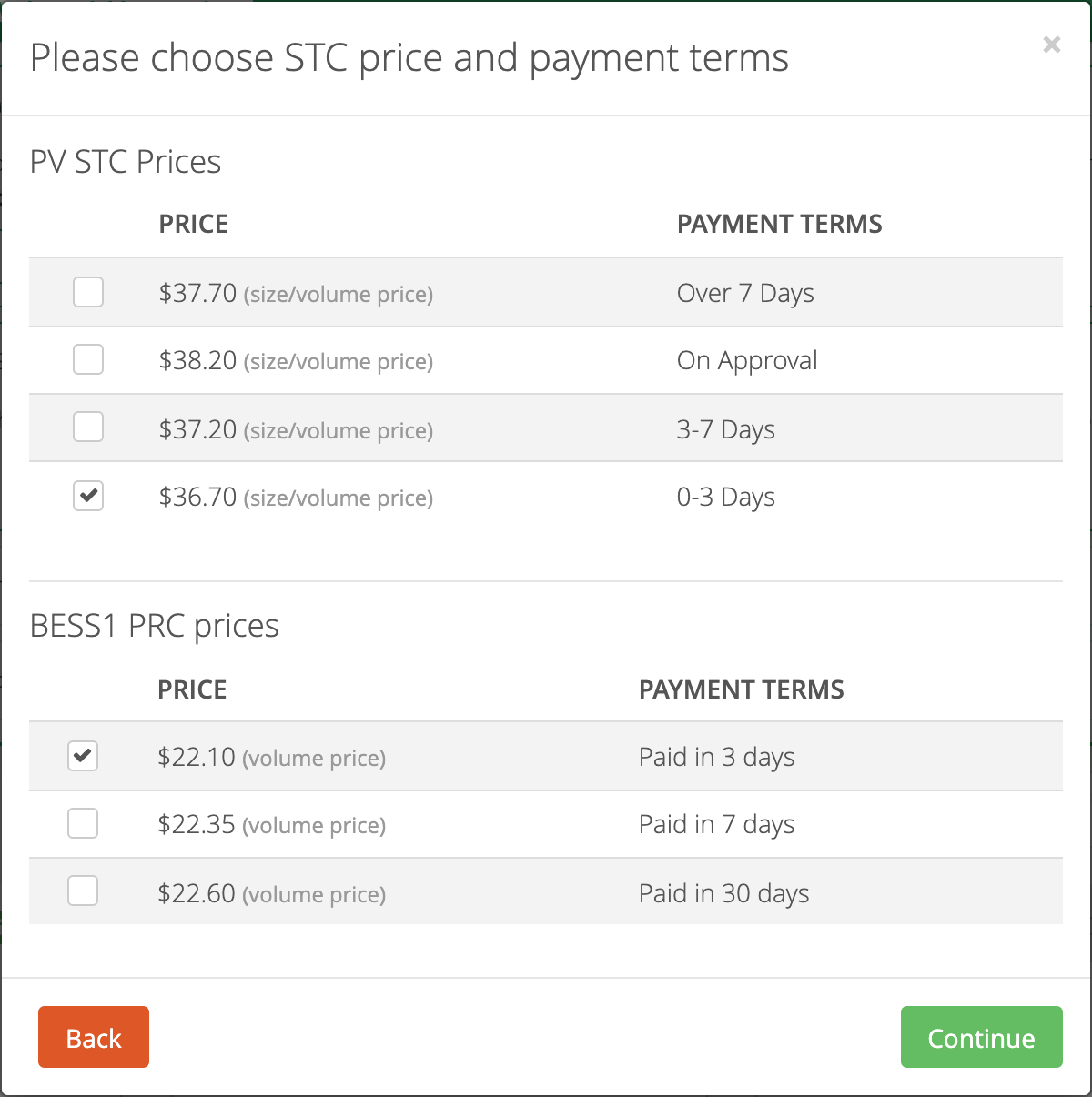
When the job moves to Completed, the price is locked: the term you chose with the ladder applied. The job shows the final price per certificate and the payment term you chose.
❓ Common questions
- What happens to a job that doesn't fit any tier?
- It is paid the normal price: the payment term the retailer chooses, or the individual price if there are no terms.
- What exactly is measured?
- For PV STCs, either the system size in kW of the job or the number of STCs on the job, whichever you choose in Price by. For BESS, the number of PRCs for that BESS activity, counted in whole PRCs.
- Can a tier make the price $0 or negative?
- No. If a tier would bring the price to $0 or below, the ladder is skipped for that job and the normal price is paid. The Result column shows "n/a" for these cases.
- Why can't I use Fixed $ with payment terms?
- A fixed tier price would replace the term price, so every term would pay the same and the retailer's choice would have no effect. Use + $, - $, + % or - % instead, so each term keeps its own price.
- If I change a ladder, do completed jobs change?
- No. The price is set when a job is marked Complete. A new or changed ladder applies to jobs completed after you save it. Estimates on in-progress jobs use the new ladder the next time the jobs page loads.
- Who sees the tier label?
- The retailer. It shows next to the estimated price on their jobs and in the price details at the top of the page. On a completed job, the payment term name is shown when the retailer chose one, otherwise the tier label.
- How many tiers can a ladder have?
- Up to 20. Most ladders need two to four.
- Do BESS3, BESS4 and BESS5 have their own ladders?
- Yes. Every BESS activity has its own price, payment terms and ladder. BESS3, BESS4 and BESS5 follow the BESS1 spot price as their base.
- Can I use a ladder for HW STCs, Battery STCs, VEECs, ESCs or REPs?
- Not at the moment. Ladders are available for PV STCs and BESS1 to BESS5 PRCs.
For platform support, please contact your Bridge Select representative.
Still need a hand?
If you have any questions, please do not hesitate to reach out to us.
Contact the BridgeSelect Support Team