
The Import jobs button lets a retailer create jobs in bulk from a CSV file instead of entering them one by one. Each row in the file becomes a job. The import looks up the panels, inverter, battery or hot water unit in the Clean Energy Regulator (CER) approved lists, assigns the installer from their accreditation number, and works out the STCs, so the jobs are ready for your installers as soon as the import finishes.
All customer names, addresses, phone numbers and installers in this guide are demo data.
Solar PV jobs
Import from the Solar PV + Battery jobs page. You see a preview of your file before anything is saved.
Go to the Solar PV steps →Hot water jobs
Import from the Hot Water jobs page, with heat pumps and solar water heaters recognised automatically.
Go to the Hot Water steps →💡 What the import does
- Creates one job per row. Every row needs a CRM ID, your own reference for the job. Rows without one are skipped.
- Adds the products. Panel, inverter, battery and hot water brands and models are matched to the CER approved lists, with the details the job page uses (responsible supplier, wattage, approval and expiry dates, battery capacity).
- Assigns your people. The installer, designer and electrician (or plumber for hot water) are found from their accreditation or licence numbers. A job with an installer is created as Assigned, otherwise as New.
- Calculates the STCs. The number of STCs is worked out the same way as on the job page, from the system, the installation postcode and the installation date.
- Updates existing jobs. If a row has the CRM ID of an existing job that is still New or Assigned, that job is updated instead of a new one being created.
- Tells you what happened to every row. Each row shows Added, Updated or the reason it wasn't imported, plus a short note about anything that couldn't be matched.
✅ Before you start
800 becomes
0800.📤 Import Solar PV jobs
Go to Jobs > List. Make sure Solar PV + Battery is selected 1, open the In progress tab 2 and click Import jobs 3.

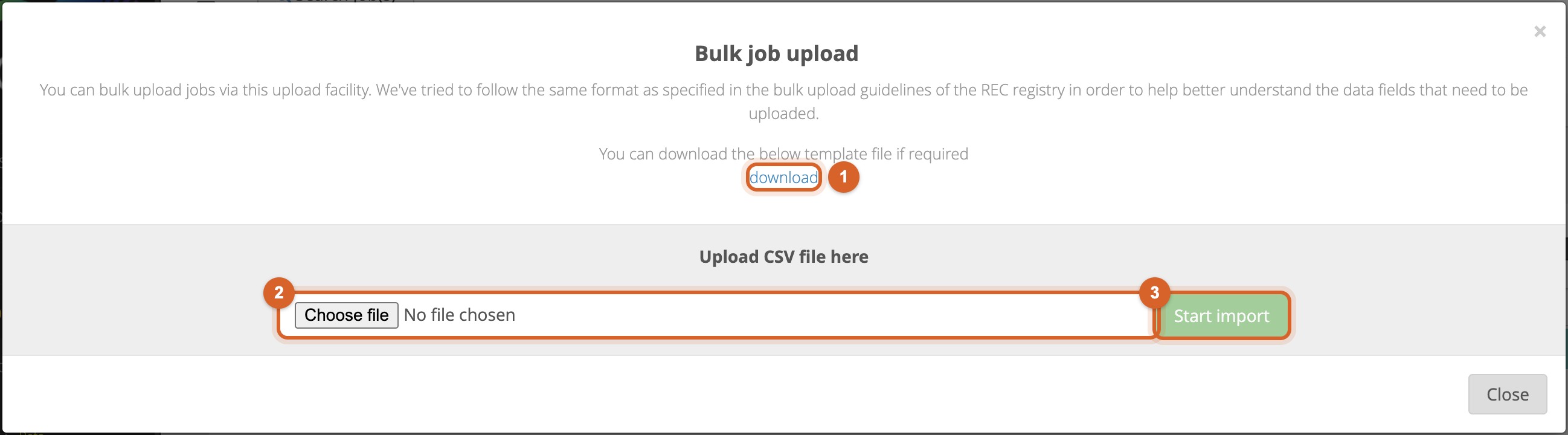
The Bulk job upload window opens.
- 1 Click download to get the template file. Fill in one row per job and save it as a CSV file. See what each column does.
- 2 Click Choose file and select your CSV file.
- 3 Start import stays greyed out until a file has been read.
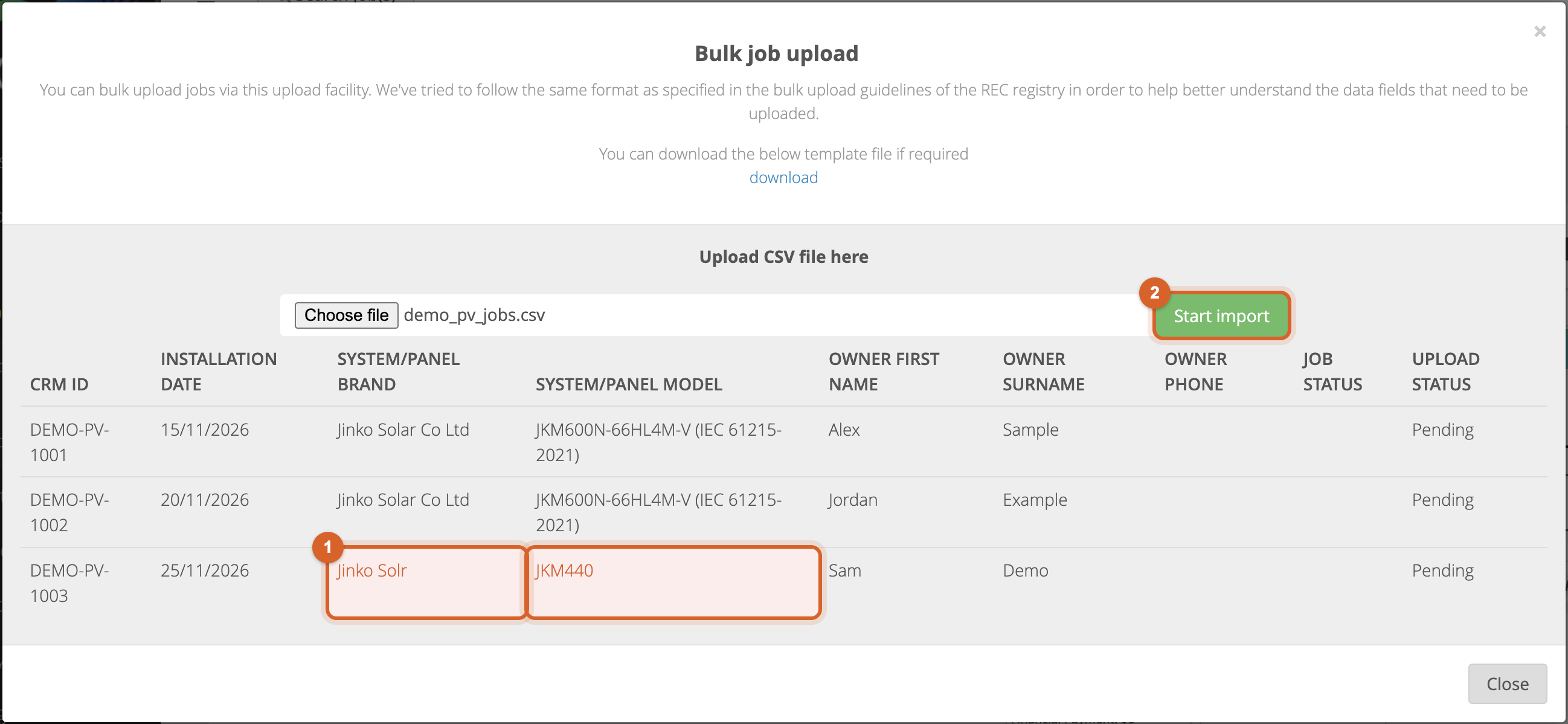
Check the preview. Every row of your file is listed before anything is saved.
- 1 A brand or model shown in red wasn't found in the CER approved list. The job is still created, but without panels, so fix the spelling in your file and choose it again if you want the panels added.
- 2 When you're happy, click Start import.
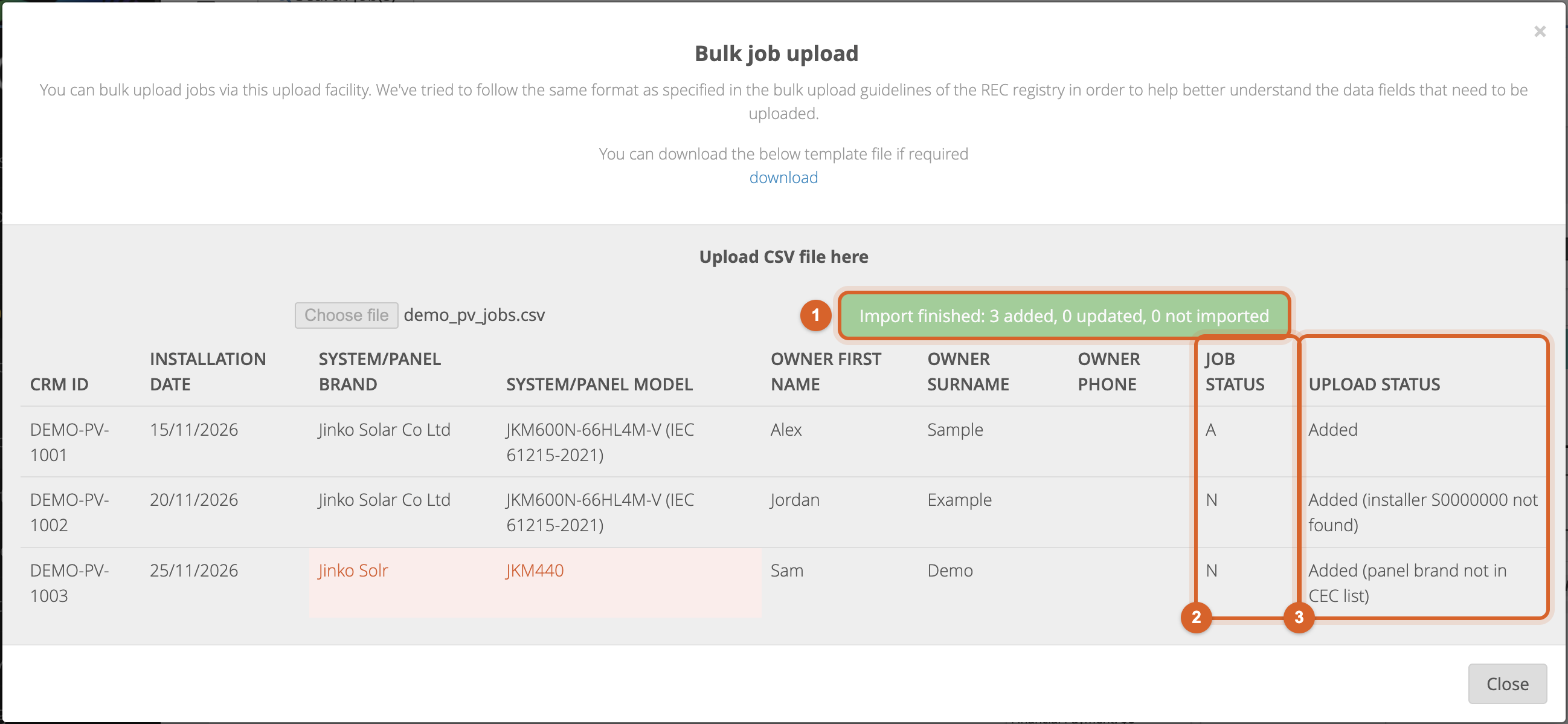
The rows are imported one at a time. Keep the window open until the button shows Import finished.
- 1 The button sums up the import: how many jobs were added, updated and not imported.
- 2 Job Status is the job's status after the import:
A= Assigned (an installer was assigned),N= New. - 3 Upload Status says what happened to the row, with a note in brackets for anything that couldn't be matched. See results and messages.
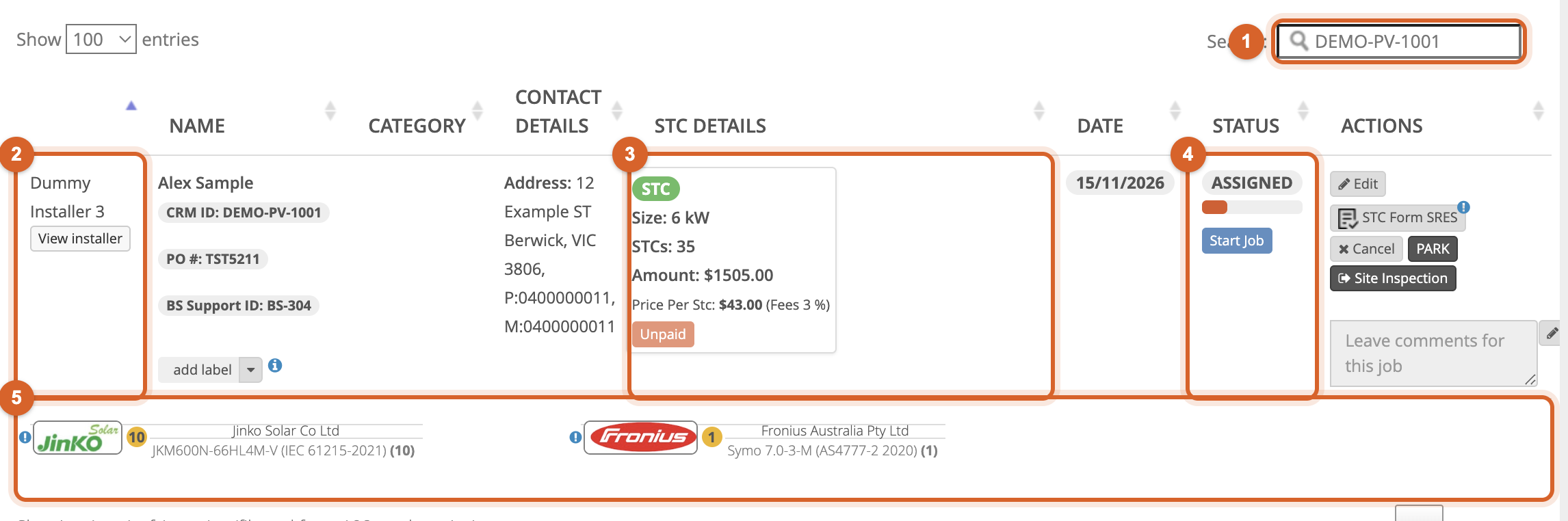
Click Close. The jobs list reloads and your new jobs are in the In progress tab. Search for a CRM ID 1 to find a job. Each imported job shows its installer 2, system size and STCs 3, status 4, and its panels and inverter 5.
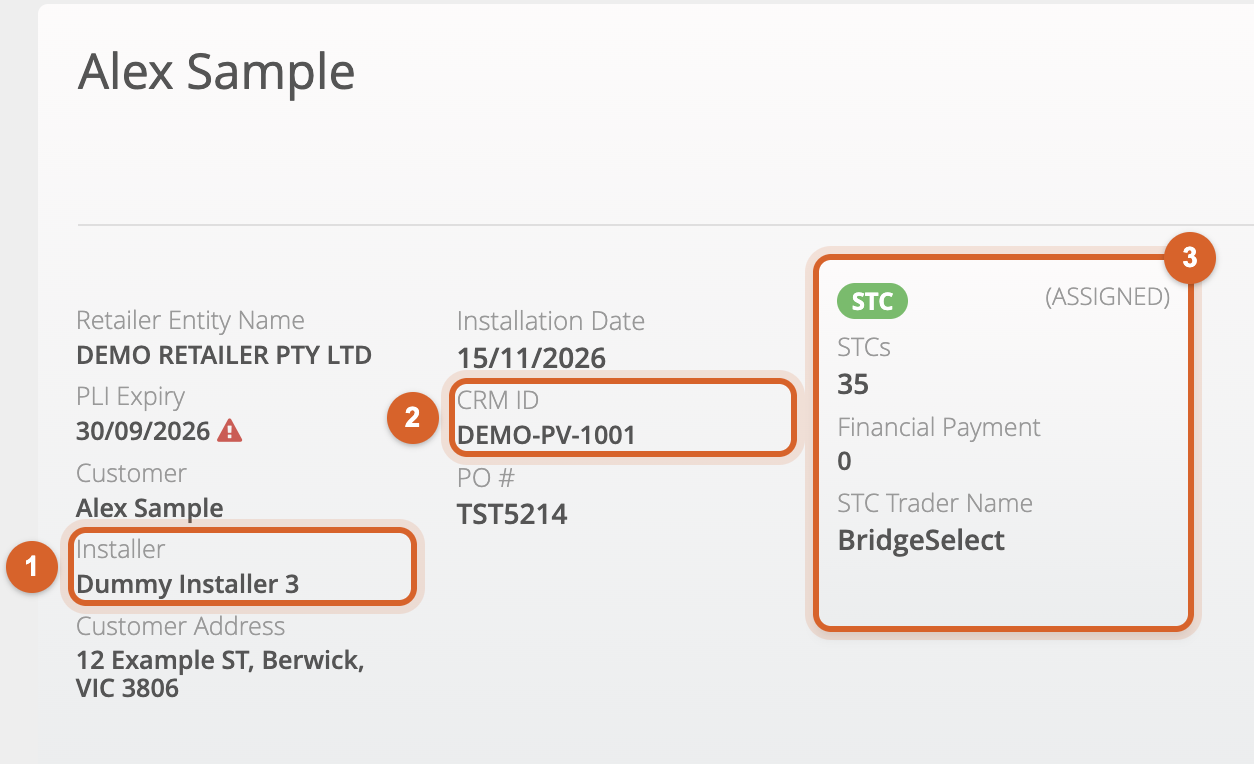
Click Edit to open a job. The summary at the top shows the installer 1, the CRM ID 2 and the STCs 3.
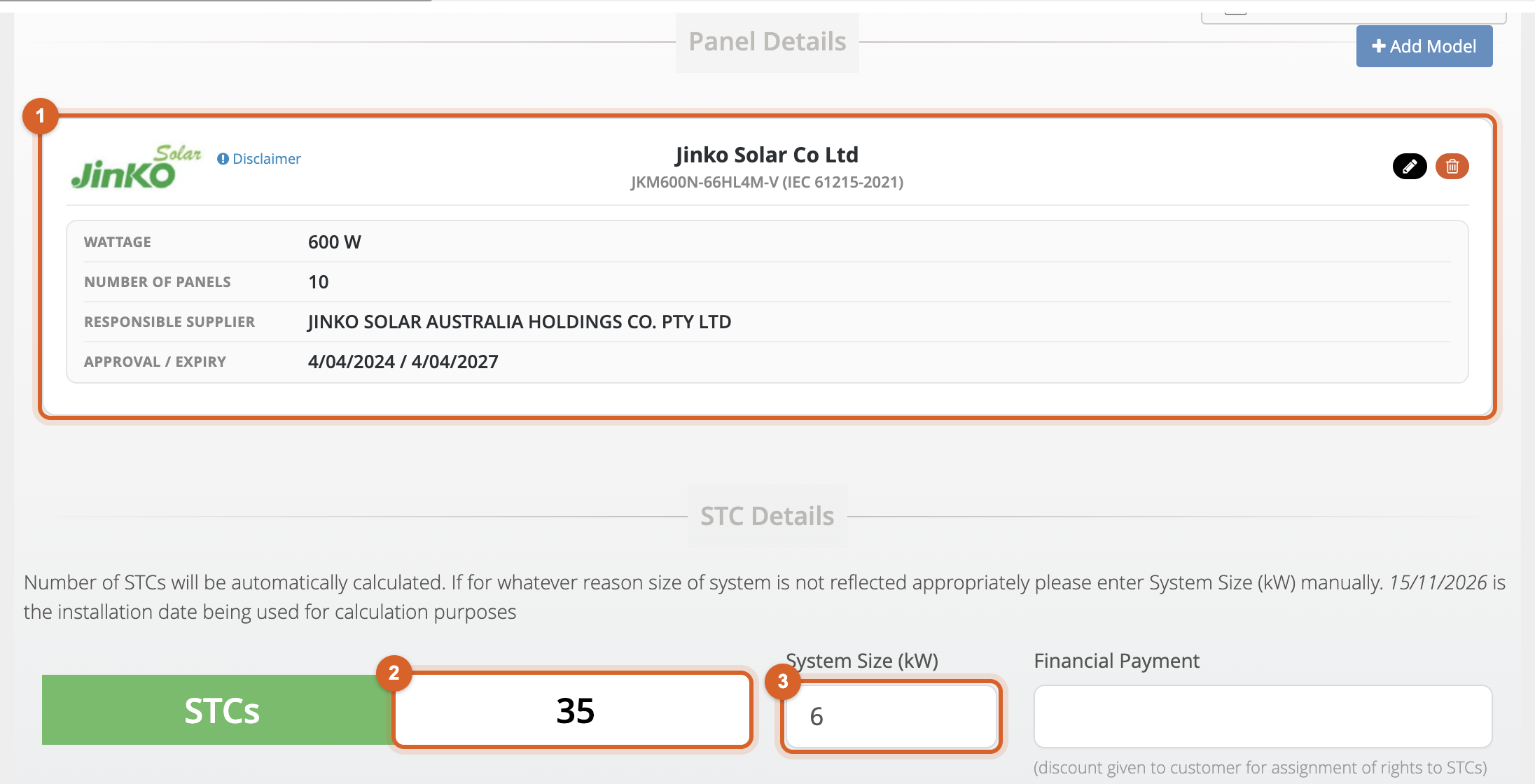
On 2. System Details you can see what the import added:
- 1 The panel brand and model from the CER list, with the wattage, number of panels, responsible supplier and approval dates.
- 2 The number of STCs.
- 3 The system size, worked out as wattage × number of panels (here 10 × 600 W = 6 kW).
🗂️ Solar PV template: what each column does
Only CRM ID is required, but the more columns you fill in, the more complete the job. Empty cells are simply skipped.
| Column | What the import does with it |
|---|---|
| Job | |
| CRM ID | Required. Your reference for the job. Used to find the job again if you import the same CRM ID later. |
| Installation date | Day first: 15/11/2026, 5/1/2026,
15-11-2026, 15-11-26 or 2026-11-15. Two-digit years are read as 20xx. Any other
format is left off and noted. |
| For what period would you like to create RECs | The STC deeming period, for example
Five years. If left empty, it is set from the installation year (2026 installs get
Five years), the same as the job page. |
| Type of system, Type of connection to the electricity grid, System mounting type | Saved as given. If a battery is listed and the connection type is empty, it is set to "Connected to an electricity grid with battery storage". |
| Panels | |
| System/panel brand, System/panel model | Matched to the CER approved panel list. The job gets the CER brand and model, wattage (read from the model name), responsible supplier and approval/expiry dates. |
| Number of panels | The panel count. System size = wattage × number of panels. |
| What is the rated power output (in kW)… | Only used when the panel model can't be matched, so the job still has a size for the STC calculation. |
| Inverter and battery | |
| Inverter manufacturer, Inverter series, Inverter model number | Matched to the CER inverter list. The series picks the right model when two share a name. Added as 1 inverter with its power and approval dates. |
| Battery storage manufacturer, Battery storage model | Matched to the CER battery list and added as 1 battery with its usable and nominal capacity. |
| Is the battery system part of an aggregated control?, Has the installer changed default manufacturer setting… | Saved as given. |
| People | |
| CEC accredited installer number | Assigns the installer and sets the job to Assigned. The installer must be registered with Bridge Select and connected to your account. |
| CEC accredited designer number | Assigns the designer. Can be the same number as the installer. |
| Licensed electrician number | Assigns the electrician. |
| Installation address | |
| Installation unit type, unit number, street number, street name, street type, town/suburb, state, postcode | The installation address. Unit types use the same codes as the job page, for example
UNIT, APT, FLAT or SHOP. Any part left empty is taken from the
owner address. |
| Installation latitude, Installation longitude | Saved when they are numbers, for example
-38.0434. |
| Installation property type, Single or multi-story, Installation property name…, Is there more than one SGU at this address?, Additional system information | Saved as given. |
| Owner | |
| Owner type, organisation name, first name, surname, phone, mobile, email | The customer.
The owner's name and numbers are also used as the installation contact. Owner types other than
Individual are marked as registered for GST, as when you create a job by hand. |
| Owner address type, postal delivery type and number, unit type and number, street, town/suburb, state, postcode | The customer's address. When it matches the installation address, the job is marked "same as owner address". |
| National metering identifier (NMI) | Saved as given. |
| CER statements and failed certificates | |
| CEC accreditation statement, siting approvals, electrical safety documentation, standards statement, not grid-connected statement, previously failed / accreditation code / explanatory notes | Saved as given. |
| Not imported | |
| Equipment model serial number(s) | Serial numbers are scanned by the installer in the app. |
| Installer, electrician and designer names, phone numbers and addresses | Not needed: their details come from their Bridge Select account, found by number. |
| Retailer name, Retailer ABN | Your account details are used. |
| Reference, Certificate tag, Signed data package, site audit report, complete unit, additional capacity notes, resource availability, extra location description, Owner fax, Owner country | Ignored. Add anything you need on the job page. |
📤 Import Hot Water jobs
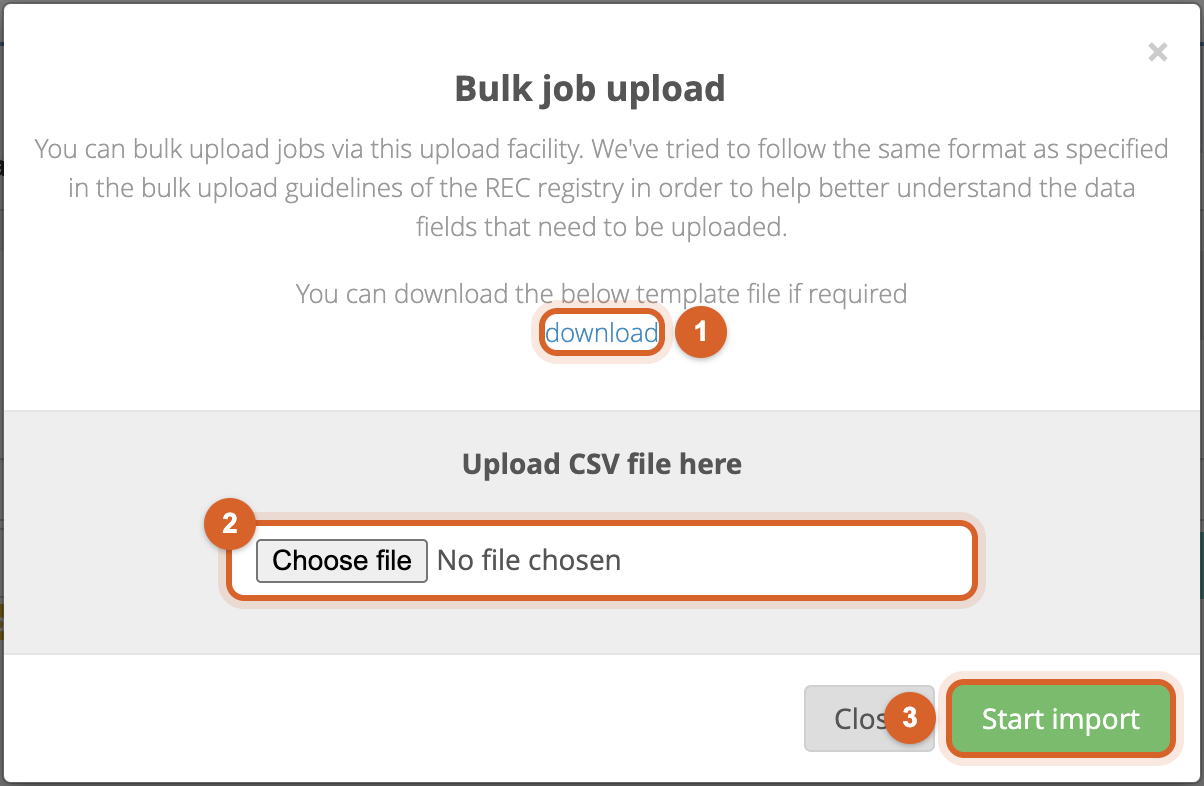
Go to Jobs > List and select Hot Water 1. The jobs open on the In progress tab 2. Click Import jobs at the end of the job type bar 3.

In the Bulk job upload window:
- 1 Click download to get the hot water template. It has different columns from the Solar PV one, see what each column does.
- 2 Click Choose file and select your CSV file.
- 3 Click Start import. Hot water imports start straight away, without a preview.
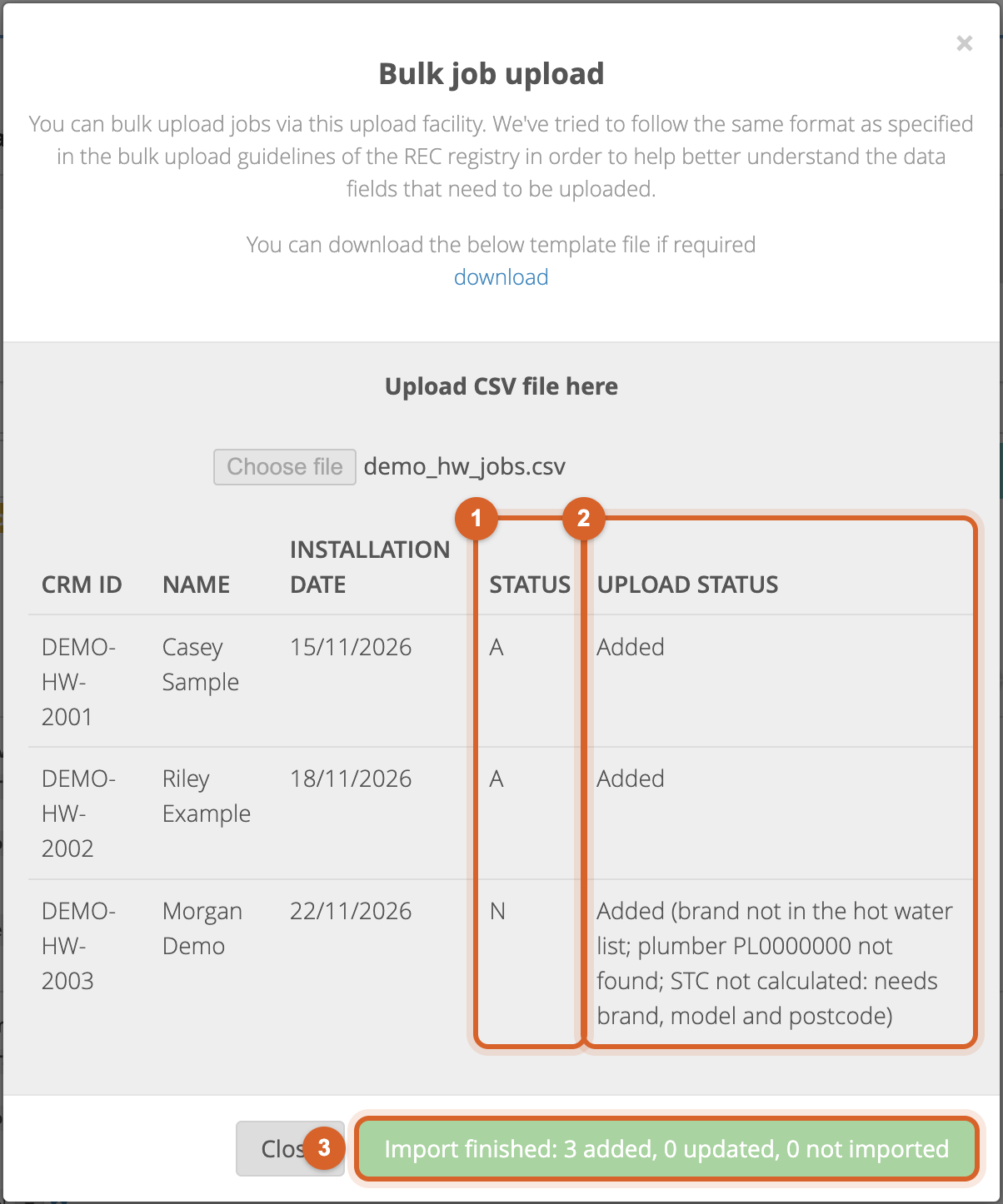
Each row appears in the table as it is imported:
- 1 Status:
A= Assigned (the plumber was assigned),N= New. - 2 Upload Status: Added, Updated, or why the row wasn't imported, with notes. Here the third row's brand was misspelt, so it has no product or STCs.
- 3 When the button shows Import finished, click Close. Your jobs are in the In progress tab. If you don't see them straight away, click the refresh icon on the tab.
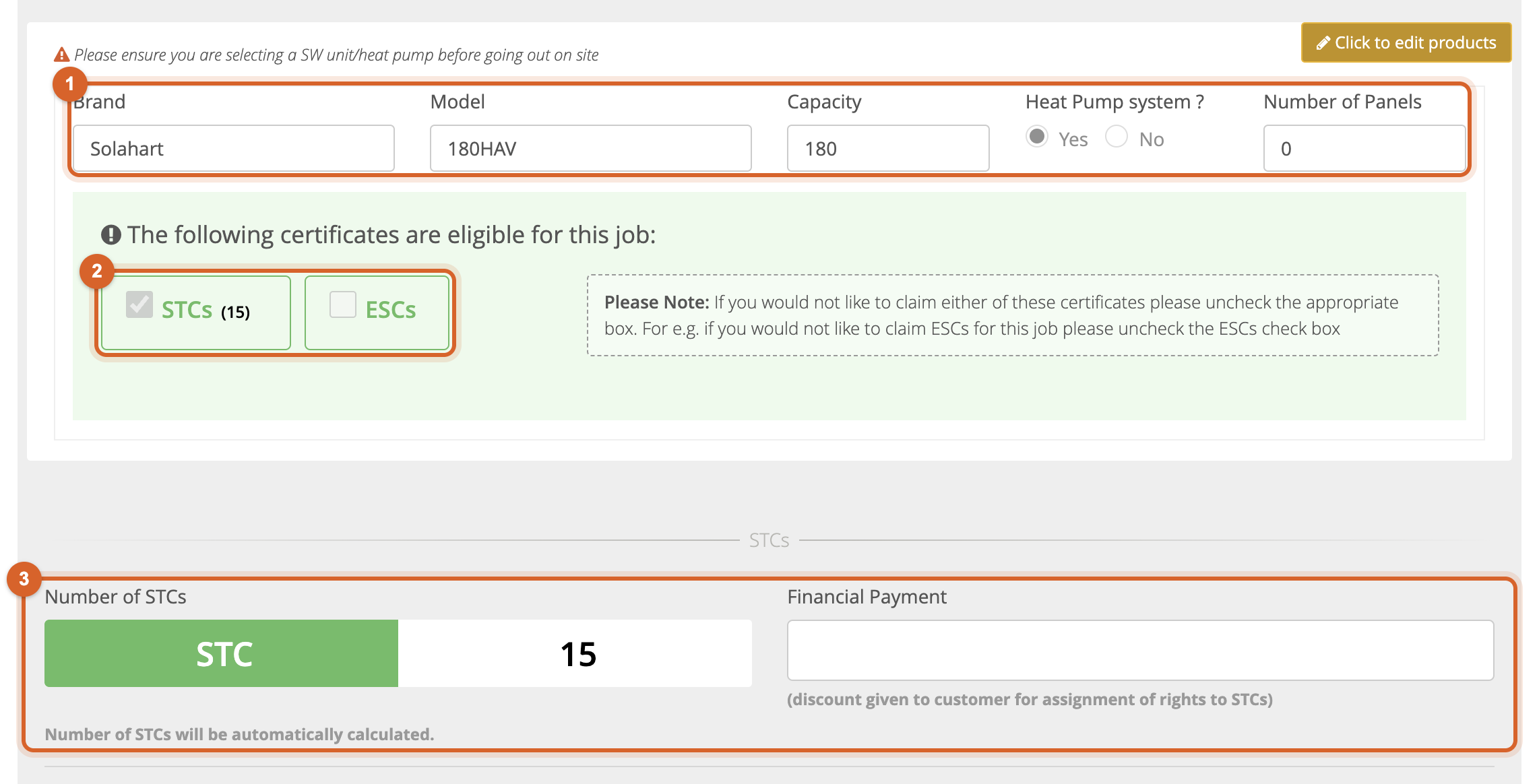
Open a job and go to 2. System Details:
- 1 The brand and model from the CER hot water list. Heat pump models are recognised automatically: Heat Pump system? is set to Yes and the number of panels to 0.
- 2 STCs are ticked and calculated. Other certificates the job is eligible for (here ESCs, for an NSW job) are listed but left unticked for you to set up on the job.
- 3 The number of STCs.
🗂️ Hot water template: what each column does
| Column | What the import does with it |
|---|---|
| Job | |
| CRM ID | Required. Your reference for the job. |
| Installation date | Same formats as the Solar PV template, day first. |
| Installation type | For example Replaced Electric Heater. Use the same wording
as the Installation type list on the job page. |
| Is the volumetric capacity of this installation greater than 700L, Statutory declarations sent, Is there more than one SWH/ASHP at this address, Creating certificates for previously failed SWH | Saved as
given (Yes or No). |
| Product | |
| System brand, System model | Matched to the CER hot water list. The job gets the CER brand and model, and whether it is a heat pump. |
| Number of panels | The number of collector panels for a solar water heater. Heat pumps are always saved with 0. |
| People | |
| Plumber License | Assigns the plumber as the job's installer and sets the job to Assigned. The plumber must be registered with Bridge Select and connected to your account. |
| Address and owner | |
| Installation unit type, unit number, street number, street name, street type, town/suburb, state, postcode, latitude, longitude, special address | The installation address, as for Solar PV. Empty parts are taken from the owner address. |
| Installation property type, Installation single or multi-story, Additional system information | Saved as given. |
| Owner type, organisation name, first name, surname, phone, mobile, email, address type, postal delivery type and number, unit, street, town/suburb, state, postcode | The customer and their address, as for Solar PV. |
| Not imported | |
| Tank serial number(s) | Scanned by the plumber in the app. |
| Is your water heater second hand, Reference, Certificate tag, Installation property name…, Failed accreditation code, Explanatory notes for failed accreditation code, Owner fax, Owner country | Ignored. Add anything you need on the job page. |
🧮 How certificates are worked out
| Certificate | What the import does |
|---|---|
| STCs (Solar PV) | Calculated from the system size (matched panels, or the kW column), the installation postcode, the installation date (today's date if there isn't one) and the property type. This is the same calculation the job page uses. |
| STCs (Hot water) | Calculated from the brand and model, the installation postcode and the installation date (today's date if there isn't one). |
| VEECs, ESCs, REPS, battery certificates (BSTCs, PRCs) | Not set up by the import. They need details the template doesn't have, such as the activity, size or agent. Set them up on the job page, the same as for a job you create by hand. |
For STCs to be calculated, the row needs a matched product and an installation postcode. If they are missing, the job is still created and the row says "STC not calculated". Fix the file and import it again (the job is updated and the STCs calculated), or add the missing details on the job page.
📋 Results and messages
Upload Status
| Shows | Meaning |
|---|---|
| Added | A new job was created. |
| Updated | A New or Assigned job with this CRM ID already existed and was updated. See updating jobs. |
| Not updated (job is already past Assigned) | A job with this CRM ID has already started (or moved further), so it was left as it is. Change that job on the job page. |
| Skipped: no CRM ID | The row has no CRM ID. |
| Failed: … | The row couldn't be saved. The reason follows. Try again, and contact support if it keeps failing. |
Notes in brackets
A note doesn't stop the job being created. It tells you which part of the row couldn't be used.
| Note | What to do |
|---|---|
| panel brand not in CEC list panel model not in CEC list inverter not in CEC list battery not in CEC list |
Check the spelling against the CER approved list (the job page drop-downs use the same names) and import the row again, or pick the product on the job page. |
| brand not in the hot water list model not in the hot water list | As above, for hot water units. |
| installer … not found designer … not found electrician … not found plumber … not found |
No one with that number and role has a Bridge Select account. Check the number, or ask them to register, then connect them to your account. |
| installer … is not connected to your account | The person is registered but not connected to you. Connect them from the Installers menu, then import the row again or select them on the job page. |
| panel approval expired … inverter approval expired … battery approval expired … | The product's CER approval ends on or before the installation date. The job page shows the same warning. Check the product or the date. |
| installation date not recognised: … | Use one of the date formats in the template table, day first. |
| STC not calculated: needs panels and postcode STC not calculated: needs brand, model and postcode |
Add the missing product or installation postcode. |
| STC: … | The STC service returned a message, for example about the installation date. The job is saved with 0 STCs. Check the date and postcode. |
| STC could not be calculated | The STC service couldn't be reached. The job is saved without STCs. Import the row again a little later to add them. |
🔁 Updating jobs you already imported
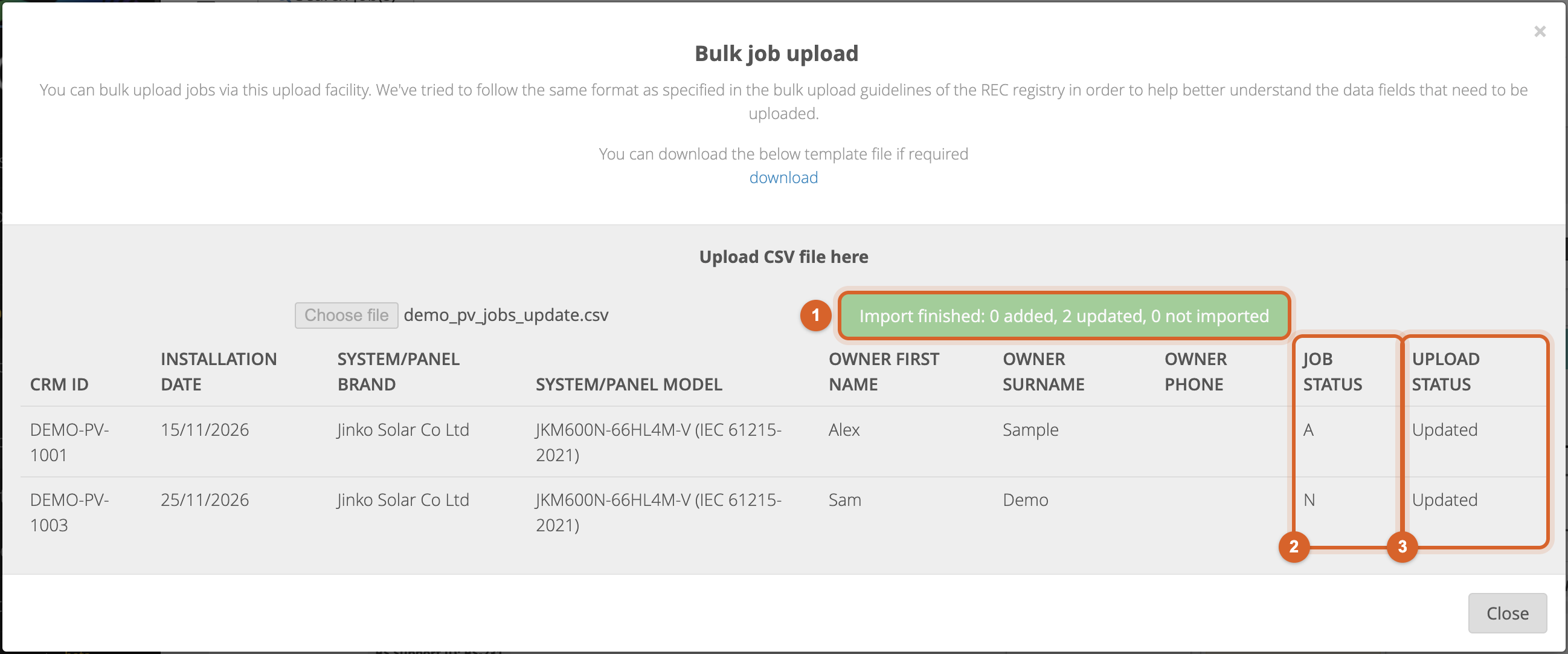
To correct jobs, fix the rows in your file and import them again with the same CRM IDs. In this example the first job got a new mobile number and the third job's misspelt panel brand was corrected:
- Only New and Assigned jobs are updated. Once a job has started, the row shows "Not updated" and the job is left alone, so an old file can't overwrite work that is already under way.
- Empty cells don't clear anything. Only the columns with a value in the file are changed.
- Products are replaced, not added. A matched panel, inverter or battery in the file replaces the one on the job.
- Adding an installer to a New job moves it to Assigned.
- The same CRM ID twice in one file: the first row creates the job and the second row updates it.
❓ Common questions
- How many jobs can I import at once?
- There is no fixed limit. Rows are imported one after another, so a large file takes a little longer. Keep the window open until it shows Import finished.
- Do I have to fill in every column?
- No. Only CRM ID is required. For jobs that are ready to go, fill in at least the installation date, the installation address, the owner's name and contact details, the product (panel brand, model and number of panels, or hot water brand and model) and the installer's number.
- Can I change the column order or add my own columns?
- Yes. Columns are matched by their names in the header row, so the order doesn't matter, and columns the import doesn't recognise are ignored. Don't rename the template's columns.
- A job has two inverters or two batteries. Can I import both?
- The template has room for one of each. Import the job, then add the second one on the job page.
- Are serial numbers imported?
- No. Panel, inverter, battery and tank serial numbers are scanned by the installer in the app.
- Why is the installer missing from my job?
- Check the row's note. The number must belong to someone registered with Bridge Select, with the right role (installer, designer, electrician or plumber), who is connected to your account.
- Does the import set up VEECs, ESCs or battery certificates?
- No, only STCs. Set up the other certificates on the job page, as you would for a job you create by hand.
- My new jobs aren't in the list yet.
- New jobs can take a few seconds to appear. Click the refresh icon on the In progress tab, or search for the CRM ID.
For platform support, please contact your Bridge Select representative.
Still need a hand?
If you have any questions, please do not hesitate to reach out to us.
Contact the BridgeSelect Support Team